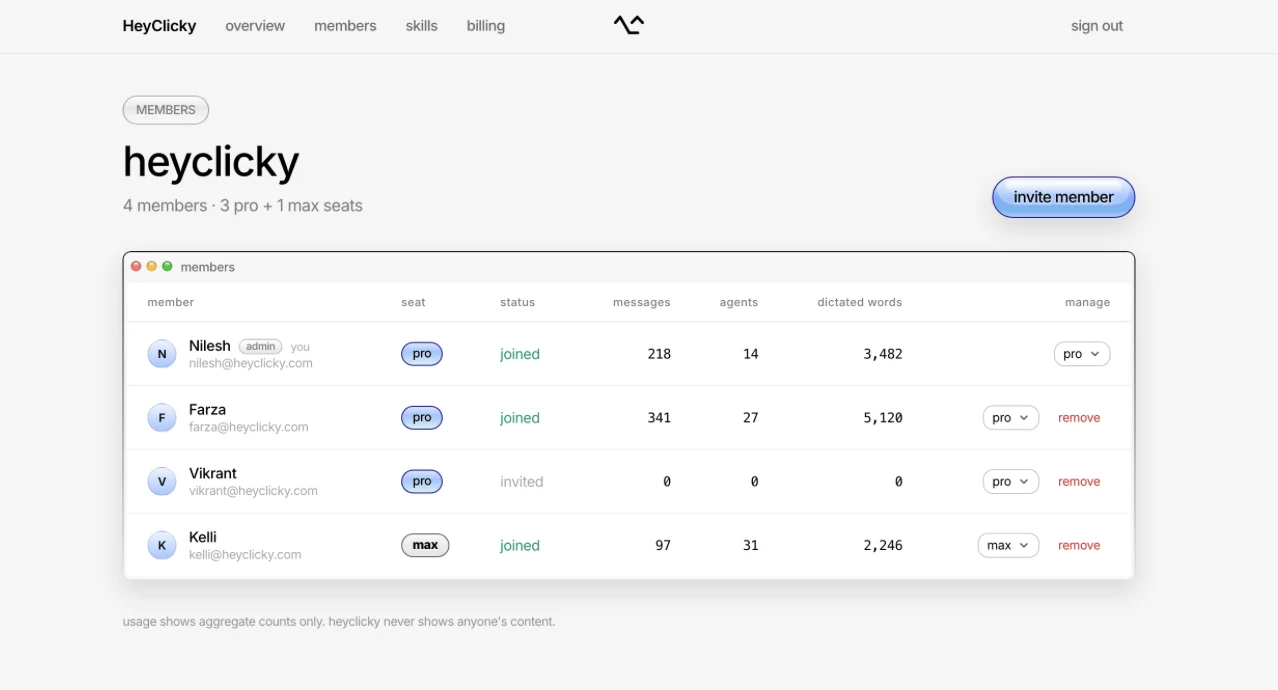

A small behind-the-scenes update that checks HeyClicky's new self-updating works smoothly. Nothing changes in how you use it.
improvements
Updating from 1.1.2 to this version happens on its own, which is how every update arrives from now on.
v1.1.2Oct 24, 2026Windows
HeyClicky for Windows now updates itself
HeyClicky now updates itself, comes with a new installer that works on every PC, and fixes the crashes and bugs you told us about in the first few days.
what's new
Updates install themselves: HeyClicky checks for a new version in the background and installs it when you quit, or right away from Settings > General > Install & Relaunch. If you're on 1.1.1, download it once more from heyclicky.com and you won't have to again.
A new installer for every PC: The installer is small, signed and the same file every release, so Windows should stop warning about it, and when HeyClicky can't run on a PC it says exactly why, with an Email us button.
fixes
HeyClicky didn't start on Windows set to a language that writes numbers with a comma, like French, German or Spanish.
3D drawings work on PCs whose graphics card can't draw them the usual way.
Clicking the chat box after HeyClicky drove your PC kept giving the keyboard back to the app behind it.
A drive could end the moment it began, and typing during a drive now stops as soon as you take the screen back.
Dragging a drawing's cards, turning a 3D figure after moving its window, and a few crashes from the first days.
v1.1.1Oct 23, 2026Mac
HeyClicky can draw in 3D, 2D and much more
Our biggest update yet. HeyClicky now explains things by drawing right on your screen, in 2D and 3D, with one brain that sees, talks, remembers and gets things done. It can drive your Mac for you, work in your Chrome, and everything lives in one simple notch. Thank you to everyone who wrote in and tried the early builds <3
Watch the full video on YouTube.
what's new
HeyClicky for Windows: The first version of HeyClicky for Windows is out. Get it from the download for windows button on the homepage.Windows
HeyClicky draws, in 2D and 3D: Ask about anything and HeyClicky circles, points and sketches right on your screen while it talks. Explanations land on little cards with real photos, and when the answer is a real thing, like an engine, a molecule or a building, HeyClicky builds a 3D model you can drag around and click on to ask about any part.
One brain: HeyClicky now has one brain that hears you, sees your screen, answers, and hands bigger work to agents. It starts answering a couple of seconds after you let go, remembers what was on your screen earlier in the conversation, and remembers your conversations from day to day.
HeyClicky drive: HeyClicky can take the wheel. When something needs doing in a Mac app, HeyClicky asks, and with your yes it moves the mouse and types while you watch. Move your mouse, talk or press Escape and you're back in control.reported byJCJon Cleary
The HeyClicky Chrome extension: Your agents can now work in your own Chrome, on the sites you're already signed into, in their own tab group beside your tabs. HeyClicky asks once, the first time a task needs it, and can install it for you.reported bySSSantiago SalinasMLMike Lee
A new notch: Everything now lives in your notch: Home, your whole chat with HeyClicky, and Settings. Agents you've handed work to hang from the notch as little windows that show their plan while they work and their result when they're done.requested bySSambarta
Captions: Turn on "Captions while HeyClicky talks" in Settings > Voice to see HeyClicky's words at the bottom of the screen while it talks. Typed questions that get a drawing show their answer as captions too, so the chat stays out of the way.
also new
Just hand it off: Ask for something bigger and it runs as a job with its own window on the notch. Follow up and it picks up where it left off. Clickys you made before are still there.
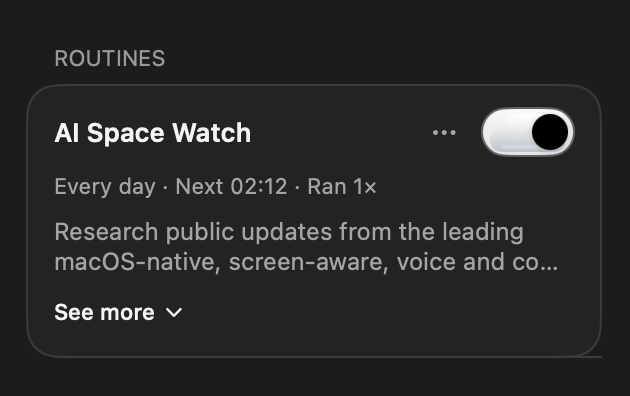
Routines, just by asking: Say "every Tuesday and Thursday at 5, check my inbox for invoices" and HeyClicky sets it up. Change, pause or delete it the same way, or from Settings > Routines.
A shorter tour: Onboarding skips the style step, shows HeyClicky driving and dictation, and ends by drawing where you're headed.
Suggestions are taking a break: Suggested tasks are paused while we rethink how they show up. They'll be back soon.
fixed
Pro shows up right after you pay: HeyClicky could keep showing Free after you upgraded. It now keeps checking until your plan updates.
Failed payments can be fixed: If a renewal failed, paying again hit an error. It now opens the billing page to update your card.reported byPPratik
Routines stop crying wolf: Routines no longer say you're offline when you aren't, ask you to connect apps that are connected, or keep reopening the upgrade card.reported byPHPeter Hollens
Window screenshots on two displays: Screenshotting a single window came out blank on Macs with more than one display. Fixed.reported byPGPrasad Gujar
Settings tidy-ups: Long shortcuts no longer squish in Settings > Shortcuts, and each expired account in Settings > Integrations has its own Reconnect button.
v1.1.1Oct 23, 2026Windows
HeyClicky for Windows
The first version of HeyClicky for Windows, for Windows 10 and 11. Hold the shortcut and talk to HeyClicky about what's on your screen, watch it draw answers in 2D and 3D, and hand bigger work to agents that run in the background, all from the notch at the top of your screen.
what's new
Get it from the download for windows button on the homepage. This first version can't update itself, so download 1.1.2 or later once by hand to get updates from then on.
v1.0.53Oct 2, 2026Mac
Several accounts per app, and a pile of fixes
You can now connect more than one account of the same app, like a work Gmail and a personal one, and your Clickys pick the right one. Computer use is much more dependable, following up on an agent is as easy as holding your voice keys, and we fixed a long list of bugs from your support emails. Thank you to everyone who wrote in <3
connectors
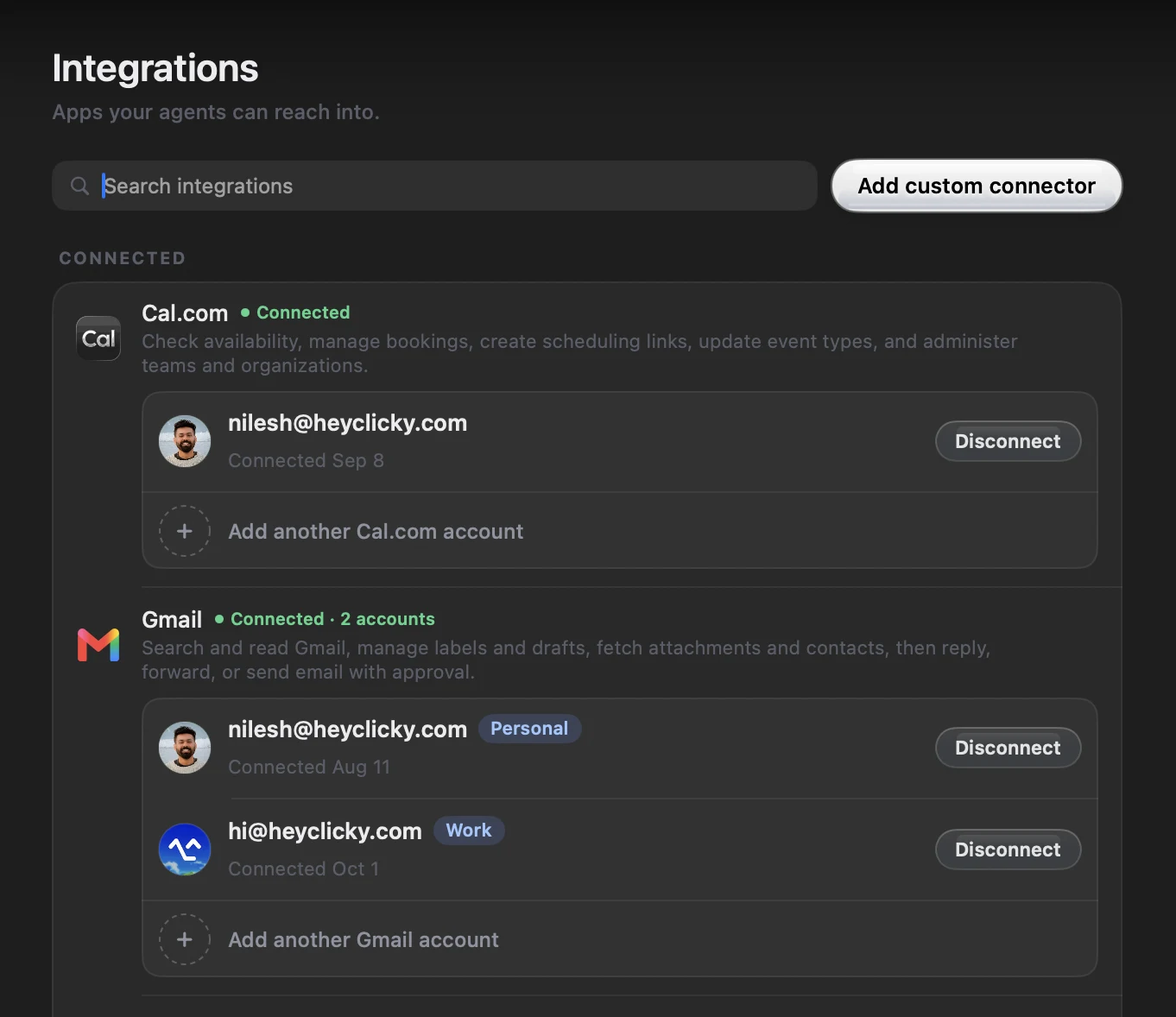
Connect several accounts of one app: Settings > Integrations now lists each connected app's accounts with the address they sign in as, plus an "Add another account" link. Once an app has two accounts, give each one a label like Work or Personal, and disconnect each one on its own. Then just say which one you mean: "add this to my work calendar" or "check my personal email". If you don't say, your Clickys read from every account and tell you which one each result came from, act on things in the account they live in, and ask you once when it's not clear which account should send something new.requested byNNusPPawelPTPalash Tiwari
Apps are ready before a Clicky starts: Right after your Mac woke up, a routine could start before your connected apps had finished loading, then report that it couldn't check Gmail or Stripe. Clickys now wait a moment for your apps to be ready before they start working.reported byHCHillel Chemouni
Calendar invites stay on the right calendar: Adding an event to a secondary calendar no longer also invites your main account, unless you ask for that.
Reddit and Monday, paused for now: Connecting Reddit or Monday almost never worked, so we've taken them out of the list until it does. Connections that already work keep working.reported byKLKe LiGOGodstime OsaroboLVLuis VilellaRARonald Austin
clickys & routines
Follow up by holding your voice keys: Point at a finished agent's card in the top right and hold your voice shortcut to answer it, then let go to send, the same gesture as everywhere else. The card shows a Listening waveform while you talk, and a short tap or Escape drops it. You can still click the text box and type.
The card shows only the latest files: After a reply that made no files, an agent's card kept showing files from an earlier reply as if it had just made them. It now shows only what the latest reply made.
Stopped right away? It doesn't count: If you stop an agent within 10 seconds of it starting, you get that agent message back, and the card and chat tell you it didn't count.
Leaner agents: Every step an agent takes now carries less than half the setup it used to, and long conversations reuse what was already read instead of starting over. Long tasks are less likely to pause and ask for more agent messages, and they get going a little faster.
Clickys ask instead of guessing: When your answer would make the work better, a Clicky now does what it can first and then asks you one short set of questions, instead of inventing details or saying it can't. The voice also only starts an agent when you clearly ask for work, otherwise it offers one, and it holds off when you say "wait".reported byMYMike YoungOskar
Always approve, up front: On the card that asks for more agent messages, Always approve is now the main button, with Approve once beside it.
Routines at your limit wait quietly: A scheduled routine that hit your agent limit popped up "Upgrade to Max" on every run. It now waits until your allowance resets.reported byAAndrew
No more twin Clickys: Sending a message by voice to a Clicky you had just made could create a second Clicky named after the message, like "Tell Scout". It now goes to the Clicky you meant.
One browser window per task: A Clicky checking a few pages used to leave a new browser window open for each one. It now keeps one window per task and moves around inside it.
computer use
Your Allow sticks: After you clicked Allow, the request could come right back, or the Clicky said it only had read-only access. That happened when a task paused for more agent messages or handed part of the job to a helper agent. Your yes now carries through both.
Fixes itself instead of failing: Computer use could start failing on every step until you relaunched HeyClicky, even with every permission on. It now notices when its helper has stopped working, restarts it, and tries again on its own.reported byAKAllan KibetJPJagrut PatelKKKishan Kumar
Answering is free: Saying Allow or Not now used to cost another agent message. Now the Clicky just picks up where it asked. The ask cards are also a calm blue instead of your Clicky's color, so they no longer look like an error.
home & voice
Smoother opens: The notch peek and Home could stutter as they opened. They now open smoothly, and the file piles on each Clicky are ready the moment you hover.
Updates without closing Home: Checking for updates no longer closes Home. When one is ready, an Update app button shows up in Home's header and in the notch peek, and the installer only opens when you click it.
Clicky remembers the page you just left: Ask a quick follow-up like "what did billing say?" right after moving to another page, and Clicky can now look back at the page you were just on instead of sending you back to it.
Walkthroughs keep their place: Long step-by-step walkthroughs could loop, sending you back to pages you had already visited or asking you to "say continue" right after a correct click. Clicky now keeps a running log of what you've done, and waits for slow pages to finish loading before it looks again.
Setups that start where you are: When Clicky walks you through setting something up, it now asks what you already have instead of assuming you're starting from scratch, and it never repeats a step that just failed.
Making a Clicky, anywhere: Asking for a new Clicky from text mode or with your voice keys now works even if you left the New Clicky page halfway through. With no Clickys yet, the notch offers Create Clicky right away, and Home's file and folder pickers open in front of the sheet instead of behind it.
Report a bug stays in view: Report a bug opened your email behind the Home sheet, where you couldn't see it. Home now steps aside.
suggestions
No more repeats: Suggestions could offer the same ideas across days, or two cards doing nearly the same thing in one batch. They now remember the cards you actually saw, approved, or turned down, and each card in a batch does something different.
onboarding & settings
Your first routine asks first: One of your first suggested tasks after the tour is now a routine card that says it repeats, with a "Yes, keep it going" button. Before, a routine was set up quietly and you never knew it would run again.
The interview no longer freezes: Going Back to the tour interview while your Clickys were still being set up left a frozen interview. It now shows the finished step.reported byJPJeffrey Patrick
Hide floating cursor: The "Dock cursor" switch in Settings > Cursor is now called "Hide floating cursor", which says what it actually does.requested bySSammy
Login item stays off: If you turned HeyClicky off as a login item in System Settings, it came back with a "Login Item Added" banner on the next launch. It now stays the way you set it.reported byTGTono Garcia
fixed
Upgrade no longer crashes: Opening the upgrade page could crash HeyClicky on macOS 26. Fixed.reported byPDPrinceton Day
Answers heard once: If two copies of HeyClicky were running, every voice answer came back two or three times. A second copy now refuses to start.reported byBLBrandon LaMarche
No freeze after sleep: Waking your Mac, or plugging in a display or Bluetooth headphones, could beachball HeyClicky for minutes while your Mac's audio settled. All of that waiting now happens in the background.
Voice recovers from a dropped connection: On a flaky network or VPN, voice could keep talking to a connection that had quietly died, with no answer and no error. It now notices and reconnects, and it no longer blames your microphone when the connection was the problem.reported byLLLijiangshan LiTCTarasha CheckerDPDaniel PrendergastSSubhash
Voice works with the lid closed: With your MacBook's lid closed, voice kept listening to the built-in mic and heard only silence. It now switches to another microphone.reported byKGKymer Gryson
The text box stops opening by itself: Shortcuts like Control+C, Control+arrow, or Control+scroll could count as a double Control tap and open the text box. They don't anymore.reported byKhadija
Window screenshots work: Screenshotting a single window could capture an empty sheet with only the Clicky cursor. HeyClicky now steps out of the way while you pick a window.reported byJRJeremy RosenEBEmil BayazitovKKabirSASimone AzzinelliJWJoey WilsonMSMikhail ShishovKSKim SlawsonKZKareem Zein& more
Mission Control shows your windows: Mission Control's desktop thumbnails could show only your wallpaper while HeyClicky was running. They show your windows again.reported byHHeliosUUtsavMMMichel MitriPCPablo CapponiAKAdithya KumarAWAlain Welliver
Markdown files open again: Some notes your Clickys wrote said they couldn't be opened. They open now.reported byJOJack Ogle
Walkthrough cursor stays free: After a click off the target in a walkthrough, the cursor could stay stuck in place. It now lets go as soon as you move your mouse.reported byDODean O.
Clicky remembers more of you: Clicky's memory of you could get cut off partway through, often losing how you like it to talk to you. It now keeps every section whole.
Deleting your account starts fresh: Deleting your account and signing up again brought your old Clickys back. Deleting now also clears your Clickys from this Mac and moves their files to the Trash.
No stray badge: Files & Folders in Settings no longer shows a permanent "UNKNOWN" badge.reported byWCWinston ChangEElie
v1.0.52Sep 24, 2026Mac
A smaller notch, and invite your friends
You told us the notch got too big, so we made it smaller. Hovering now opens a quick peek at your Clickys, and you can invite friends and get paid for it. Thank you to everyone in our WhatsApp community for telling us what felt off <3
the notch
A smaller notch, by default: Hovering the notch now opens a small peek instead of the whole Home sheet: your Suggestions, pins, every Clicky, and your apps, with each Clicky's three newest files as a little pile at the end of its row. Hover a file to see what it is, click to open it, or drag it straight out of the notch into another app. When you want the full view, pick a Clicky or hit Expand Home. Move your pointer away and it tucks back into the notch. Prefer the old way? Turn it off in Settings > General > Quick peek on notch hover.requested byKhadijaAAbhishekRRobBennieChrisPranavNNusIiPepeHamza
invite & earn
Invite friends and get paid: You now have a HeyClicky username, and heyclicky.com/@yourname is your invite link. A friend who joins through it gets 25% off their first month on a monthly plan, and you get 25% of their plan's price every month they pay, for up to 12 months, paid in cash. Open Invite & earn from Home's sidebar or Settings to copy your link, see who joined, and track what you've earned. You can also change your username.requested byAnaKhadija
Your friend's discount, up front: If a friend invited you, the plans card shows their discount with the monthly price crossed out, matching what you pay at checkout.
home
Copy text from replies: A Clicky's reply is now one selectable block of text, so you can drag across paragraphs, lists, and headings, and ⌘A and ⌘C work like anywhere else on your Mac.
Home opens smoothly: Opening Home onto a Clicky that was working could stutter for a moment right as it came down from the notch. It now opens smoothly, and the chat fills in once it lands.
Home closes when you move away: After you typed a message, Home could stay stuck open until you clicked somewhere else. It now always tucks away when your pointer leaves, and anything you were halfway through typing is still there next time.reported byChrisKhadijaIiPepe
Find archived Clickys: Archived a Clicky by accident? Archived Clickys now show up when you search, with an Unarchive button to bring them back, chat and all.reported byWillo Sana
Thumbs up, restyled: The thumbs up a Clicky gives your follow-ups has a new glassy look, and it stays on your message after you restart the app.
clickys
Every Clicky tells you when it's done: A Clicky now says it's done out loud and beside your cursor however you started it: typed in its chat, from a suggestion, a retry, or a scheduled routine. Calls and screen sharing still keep it quiet, and Do Not Disturb now only silences scheduled routines.requested byFarza
Follow up right from the agent card: A finished agent's card in the top right has follow-ups again. Tap the mic to answer by voice, or click the text box and type right in the card. The card also shows the files the task made as a little pile of thumbnails you can open.
Clicky knows its own settings: Ask things like "stop announcing yourself" or "talk slower" and Clicky walks you to the exact setting. Tell it "you talk too much" and it remembers, and it can also tell you how much of your plan you've used.
Clickys run on GPT-6: Your Clickys now run on GPT-6 Luna, and deep answers use GPT-6 Sol.
Tables you can actually read: Sheets, tables, and CSVs a Clicky makes for you are now one sheet with the answer first, a handful of short columns, and a single link column. The caveats go in the chat instead of in every cell.requested byPrerak JoshiFarza
computer use
Your yes covers one conversation: When a Clicky asks to use your Mac, your yes now applies only to that conversation, not every Clicky that happens to be working. Saying yes or no also no longer restarts anything behind the scenes.
Stays in the background: Clickys now work inside apps without moving your real pointer or jumping into another app's address bar. The agent's floating cursor is gone for now, since it could draw over the app you were using or in the wrong place. That same cursor layer is why a window screenshot, or sharing a single window in Loom or a call, could come out black or covered. It's gone, so those work again.reported byKhadijaHamza
suggestions
Fresher, more useful ideas: Suggestions now build on what happened in your apps in the last two days, so you stop seeing ideas about week-old things. A card that starts from a message offers to handle the whole stream for you, not just that one reply.requested byFarza
Cards stay in order: The Suggestions page no longer shuffles its cards on each visit, so the first card is the one the sidebar was previewing.
A break when you're busy: If three mornings of suggestions go unopened in a row, we give them a short break, starting at one day and never longer than a week. You can still turn them off entirely in Settings > Agents.requested byOskarUUtsav
First tasks end in different ways: The three first tasks you get after the tour now each finish differently: one makes you something to use or send, one gives you a straight answer in the chat, and one gets work done inside an app.requested byFarza
onboarding & plans
Meet the two default Clickys first: The end of the tour now introduces Farza's two default Clickys before the three made just for you, and always finishes in the notch.
Pages that look like HeyClicky: The sign-in, checkout, and shared skill pages in your browser now look like heyclicky.com. When you come back from checkout, Clicky tells you beside your cursor whether your plan started, so you're not left guessing.
fixed
No more boxed citation codes: Some replies showed little boxes around text like "cite turn2search4" inside tables and paragraphs. They're gone.reported byFarza
Other apps' floating bars: Another app's floating bar sitting over the notch, like a recorder pill, could quietly stop Escape, typing in a chat, and Adjust on suggestions from working. HeyClicky now only steps aside for menus you're actually using.reported byKamil
The first hover after launch: The first peek right after opening HeyClicky could fold up under your pointer and open again. It stays open now.
The unread count matches the dots: The notch's unread count could show fewer Clickys than the blue dots in the sidebar after a restart. They now agree.
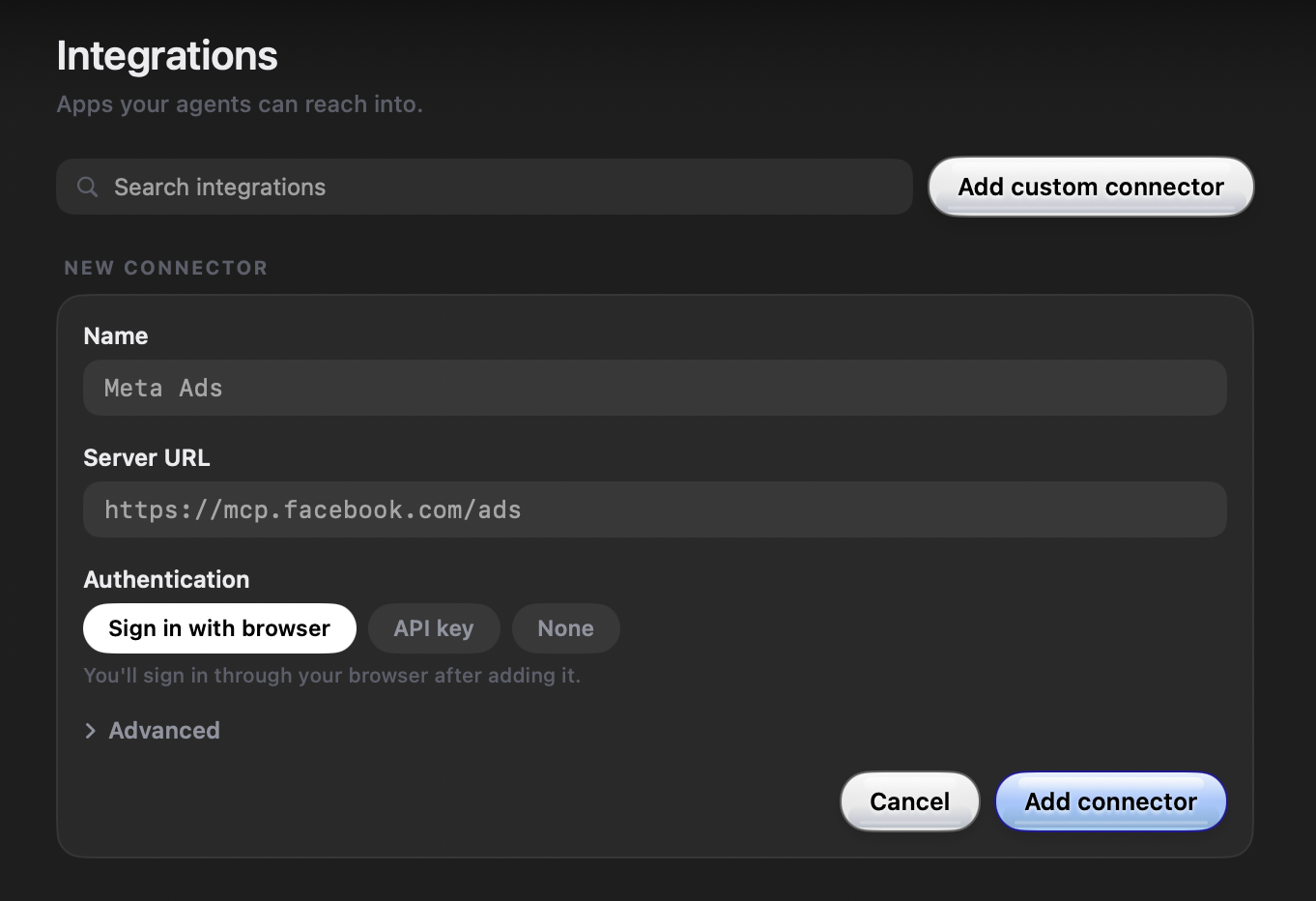
A tidier Meta Ads row: The Meta Ads connector row no longer wraps its status onto two lines, and it spells out how to connect with your own Meta app ID.
v1.0.51Sep 18, 2026Mac
A resizable Home and a whole bunch of fixes
Home now pops out of the notch at a compact size, and you can drag its edges to make it exactly as big as you like. Hovering the notch always opens Home, suggestions arrive one card at a time, and long chats are quick again. We also went through every message in our WhatsApp community and every support email from the past week, and fixed every bug we could pin down. Thank you for writing in <3
home
Resize Home right from the notch: Drag the left, right, or bottom edge of the Home sheet (or a bottom corner) to resize it, just like a window. It grows evenly from the notch, the layout adapts to whatever size you pick, and your size is remembered across opens and restarts. Double-click an edge to reset. Out of the box the sheet now opens smaller, so it feels like a big notch instead of a window \(^o^)/requested byAAbhishekBennieChrisKhadijaIiPepeNNusRRob
The notch always opens Home: The old tabbed notch panel is gone. Hovering the notch grows Home every time, and Cmd+, or Settings… opens Home's Settings page. Having two panels behind one hover left stale state that could hold the notch open, or leave it slow or stuck until you restarted the app. That's gone with the old panel, and Home now tucks away almost as soon as your pointer leaves it. If you get stuck during setup, the ⋯ menu on the setup card still has Check for Updates, Log Out, and Quit.reported byChrisBennieJJérémyIiPepe
Home remembers being a window: If you keep Home popped out as a window, it now comes back that way after a restart or an update, in the same spot and at the same size. The pop-out button also uses the picture-in-picture icons, so it no longer looks like full screen.requested byFarza
Sending keeps your place: If you've scrolled up to read, sending a message no longer yanks you to the bottom. The jump-to-newest arrow sweeps a ring once to show your message landed.
Unread count on the notch: The resting notch now shows a small gel badge with how many Clickys have something new for you, following the same rule as the blue dots.
A tidier Home: A busy Clicky's profile now shows its ten newest results, with a See more line for the rest. Computer use permission buttons match Home's gel buttons, and the Home sheet's close and pop-out buttons rest at a quieter grey.
suggestions
One card at a time: Suggestions now sit in a carousel that moves one card per swipe, with small arrows and faded previews of the cards on either side. The order shuffles on each visit, your feedback drafts stay with their card, and saying "do it" starts the card you're looking at. Approving one now gets a quick "On it." instead of a speech ^-^requested byPPratikKhadijaKamil
A calmer morning card: The morning suggestions card is shorter, its chime is 30% quieter, and it has a Dismiss button instead of closing on its own. Dismiss it three days in a row without running anything and it rests for five days. Dismissing any notch card also no longer opens Home under your pointer.requested byKhadija
clickys & routines
Make several Clickys in one ask: Say something like "make me three Clickys: inbox, competitor research, and newsletter" and you get all three, up to five at a time. Making a Clicky on the New Clicky page also no longer starts a task or uses a credit. Its chat opens with a few first messages you can tap when you're ready.requested byMatthew
Names with more personality: New Clickys were nearly all getting named "Something Buddy". They now get two friendly words that say the job, varied against the names you already have. Think PDF Desk, or endings like Scout, Lab, and Keeper.
Long chats are quick again: Scrolling or typing in a Clicky with hundreds of turns could beachball the whole app. HeyClicky now matches conversation history far more efficiently, skips work when nothing has changed, and loads the newest turns first, fetching older ones as you scroll up.One history pass on a 297-turn chat went from 2.14s to 0.15s
Only the screenshot that matters: Typing to a Clicky inside Home, tapping a suggested ask, or approving a suggestion no longer attaches a screenshot of Home itself. Older screenshots in a conversation also stop riding along with every new request, so long threads stay lighter. Voice asks still see your screen.
Routines wait for your Mac and your internet: Routines now hold until your Mac is fully awake, and never start without a usable connection. A run that's waiting shows "I'll run it when the internet is back" in the Clicky's chat, and a run that failed because you were offline doesn't count toward the three-failure pause. Routines also no longer announce when they start.
Failures stay where they happened: A task that failed to launch kept resurfacing as the newest message after every follow-up. It now stays in its place in the conversation. Inline formatting like bold and code also renders properly in the tucked-away work steps.
quiet when you're busy
Quiet on calls: While you're on a call or sharing your screen, unprompted voice updates, cursor text, the done chime, the morning hello, and tip cards all stay silent.
Separate switches for voice and cursor text: Settings > Agents > Announcements now has one switch for spoken updates and one for text beside the cursor. Turning off "Show updates beside the cursor" now hides every case, including two it used to miss.requested byKhadijaIiPepe
connectors
Custom connector tokens get checked for real: A custom connector used to turn green the moment you saved a token, before anything had talked to the server. HeyClicky now makes a real request when you save or edit a token, at launch, and on every Integrations refresh. The row shows Checking, then Connected, or "Token rejected" with an Edit token button. Adding a token also clears a stale browser sign-in warning that made working connectors look broken.
onboarding & settings
Replay the welcome tour: Settings > General has a new Replay the welcome tour option, with the video, the full tour, and the interview.requested byUUtsav
Skip the interview by voice: You can now ask to skip the tour interview out loud, and the New Clicky page opens with one clear question.
No more quitting mid-setup: macOS could quietly quit HeyClicky 15 to 30 seconds into onboarding because it had no window open, so setup could never finish. It now opts out of Automatic Termination. Thank you Juan for tracking down the exact cause <3reported byJJuanDDuncan
Typing works on a muted Mac: On a muted Mac, the "Your Mac is muted" card popped up after every typed answer in the New Clicky interview and got in the way. It stays out of the interview now.reported byNNarayan
fixed
Suggestions show up again: Suggestion checks were marked failed after three minutes in a queue that was far too small, so almost none of them ever ran (¬_¬) Queued checks now wait their turn, capacity is 20 times higher, and we get alerted if they pile up again. The fix is on our servers, so it helps older builds too.4,000+ users were affected in the last week
Paid plans no longer read as Free: When our sign-in provider was slow, plan cards could say "You're on the Free plan" with no usage meters. HeyClicky now remembers your last known plan, shows "Checking your plan…" or a Try again button while it can't load, and starts refreshing your session earlier so a slow server gets several attempts.reported byRRayenMMannasAAmin
A steadier composer: Closing the double-Control composer no longer flickers. Taking a screenshot no longer leaves the composer stuck under the menu bar with its buttons unclickable, and a click in another app no longer closes the composer or an answer you're still reading.
Check for Updates no longer freezes the notch: The "you're up to date" alert could freeze the notch, and its OK button only beeped. Checking for updates now reports the result inline.reported byBennieAAbhishekIiPepe
Window screenshots aren't blank: HeyClicky now gets out of the way as soon as you press ⇧⌘4 or ⇧⌘5, so window captures come out properly.reported byOOmar
Cleaner dictation: Dictation no longer pastes a stray <transcript> wrapper, or makes up text from a near-silent tap.
Clearer connection errors: If OpenAI is unavailable in your region or blocked by your network, HeyClicky now says so instead of "plz restart me".reported byKKanson
Crashes and freezes: Fixed a crash when waking your Mac from sleep, and a freeze that could beachball the whole app when your audio output changed, like connecting headphones.
The WhatsApp community link works again: The Community row in Settings opened "Could not load" because the old invite had expired. It now points at the current group, on older builds too :)
Links close the Home sheet everywhere: Links in headings, tables, and the document viewer now tuck the attached Home sheet away too, not just links in plain paragraphs.
Account deletion: Deleting your account now also removes you from our marketing email list.
v1.0.50Sep 14, 2026Mac
Keeping your Clickys going
A follow-up to 1.0.49: fixes for stuck Clickys and routines that kept retrying, plus drafts that stay put and a few Home improvements :)
clickys & routines
Long conversations keep working: Some long chats could get stuck and reject every new message. Fixed the issue that left those Clickys unable to continue, even when you tried again.
Recover from a missing conversation: If a Clicky's saved conversation can no longer be found, it now starts a fresh conversation instead of failing every time you give it a task.
Quick follow-ups land properly: Sending another message just as a Clicky started working could fail because it wasn't ready to receive the follow-up yet. HeyClicky now waits for it to be ready, or sends your message as a new turn if the previous task has already finished.
No more endless routine retries: A failing routine could retry every five minutes and keep using credits. It now pauses after three failed runs in a row and says why in the Clicky's profile. Resume it when you're ready to try again.
home & suggestions
Your drafts stay put: Half-typed messages and attached files now stay in their own chat when you close the notch, switch apps, or visit another Clicky. Come back and carry on where you left off. Drafts are kept while HeyClicky stays open.
Mark a chat for later: Right-click a Clicky and choose "Mark as Unread" to bring back its blue dot, even in the chat you're currently viewing. "Mark as Read" clears it without opening the conversation.
The notch gets out of your way: Escape now closes the expanded notch panel and keeps it closed until you move your cursor away. Opening a link from a reply also tucks the attached Home sheet away so you can see the page.
A tidier Home: Right-click menus now match Home's gel buttons. We've also removed the AGENTS.md and Folder shortcuts from the Clicky profile, keeping the focus on its routines and results.
Suggestions bring their sources along: When a suggestion is based on something found in your connected apps, its supporting source details now travel with the task. That gives the Clicky the message, document, or link to check before asking you where the material is.
billing
Upgrade and plan controls stay visible: The notch could cover the upgrade card, including when you'd reached your usage limit. It now moves aside before the card appears. Plan savings and Manage subscription buttons also respond immediately, and the plan card returns with an error if the link can't open.
v1.0.49Sep 12, 2026Mac
Introducing Clickys
Our biggest update yet. HeyClicky is 20 weeks old, and after 1.2 million messages we noticed we barely used agents ourselves. So we spent the last three weeks building a home for them that we'd actually want to open every day: a little team of Clickys, each with its own name, face, memory, and job. Tell them what's bugging you and they get to work ^-^
Watch the full video on YouTube.
getting started
A setup that gets to know you: Pick a character style, answer four quick questions about yourself and your work, and meet three Clickys made for you. The refreshed tour introduces them by name and shows you where to talk to them and find their suggestions.
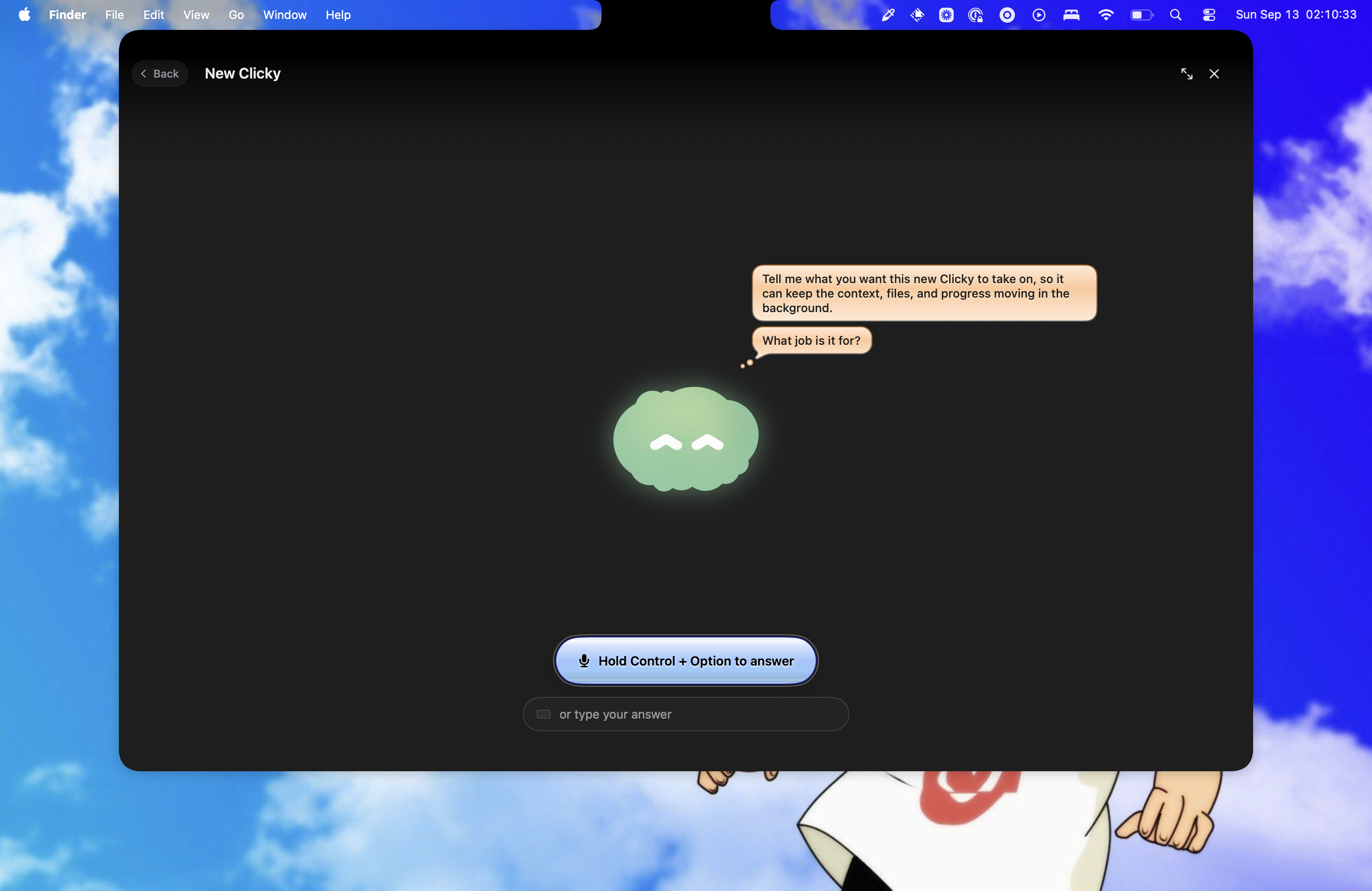
Make a new Clicky through conversation: Tell HeyClicky what you'd like help with. It asks a few useful follow-ups, helps you think it through if you're unsure, and creates a Clicky with that job in mind. Your first time also includes a quick explanation of how Clickys work.
Setup doesn't spend your normal allowance: Onboarding and creating a Clicky have their own usage limits, so getting set up doesn't use your normal message, Clicky, or dictation allowance. Work you ask the Clicky to do afterward uses your plan as usual.
clickys & home
Clickys that stick around: Create a Clicky for whatever you're working on. Each has its own name, memory, conversation, and folder for its files. Come back tomorrow and pick up the same work without explaining everything again ^-^
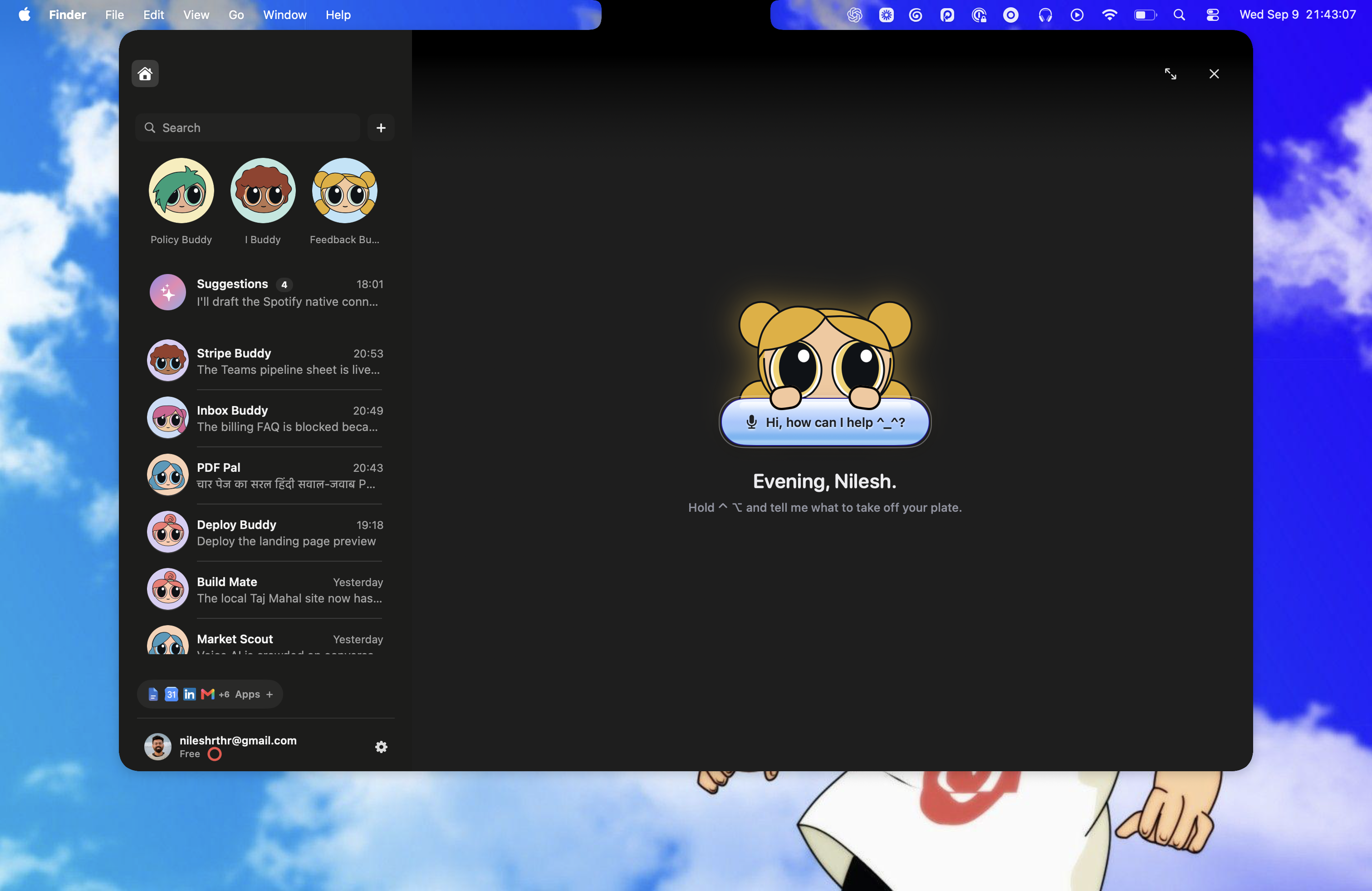
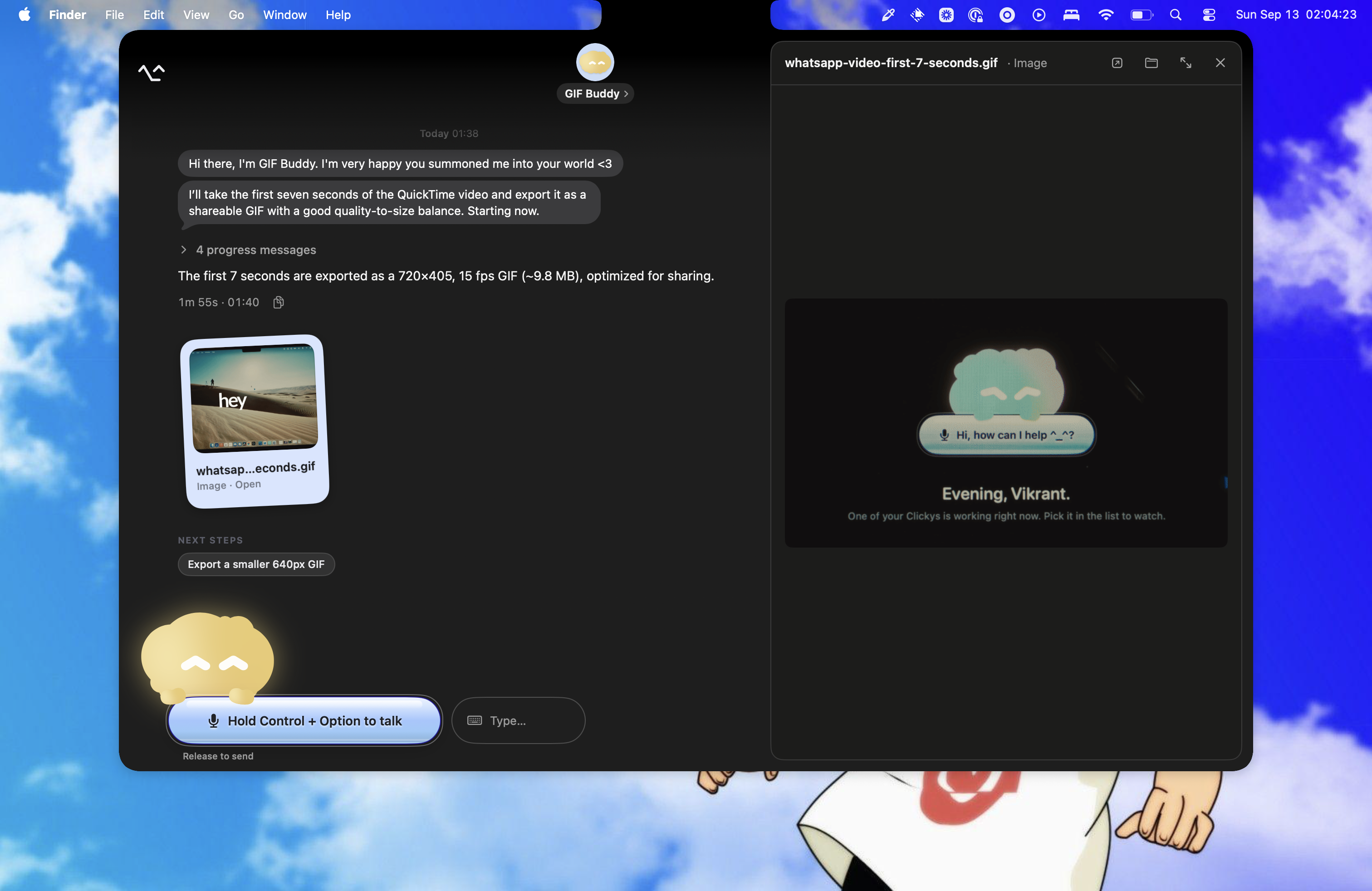
A new home for your Clickys: We've updated the notch to make it the main home for your Clickys. Your Clickys, conversations, and files now live together in a full chat interface. Open it from the notch, the Dock, or Control + Command + A. Expand it into its own window when you want more room, then tuck it back into the notch. No model pickers, no settings maze. Just a chat and a hold-to-talk pill.
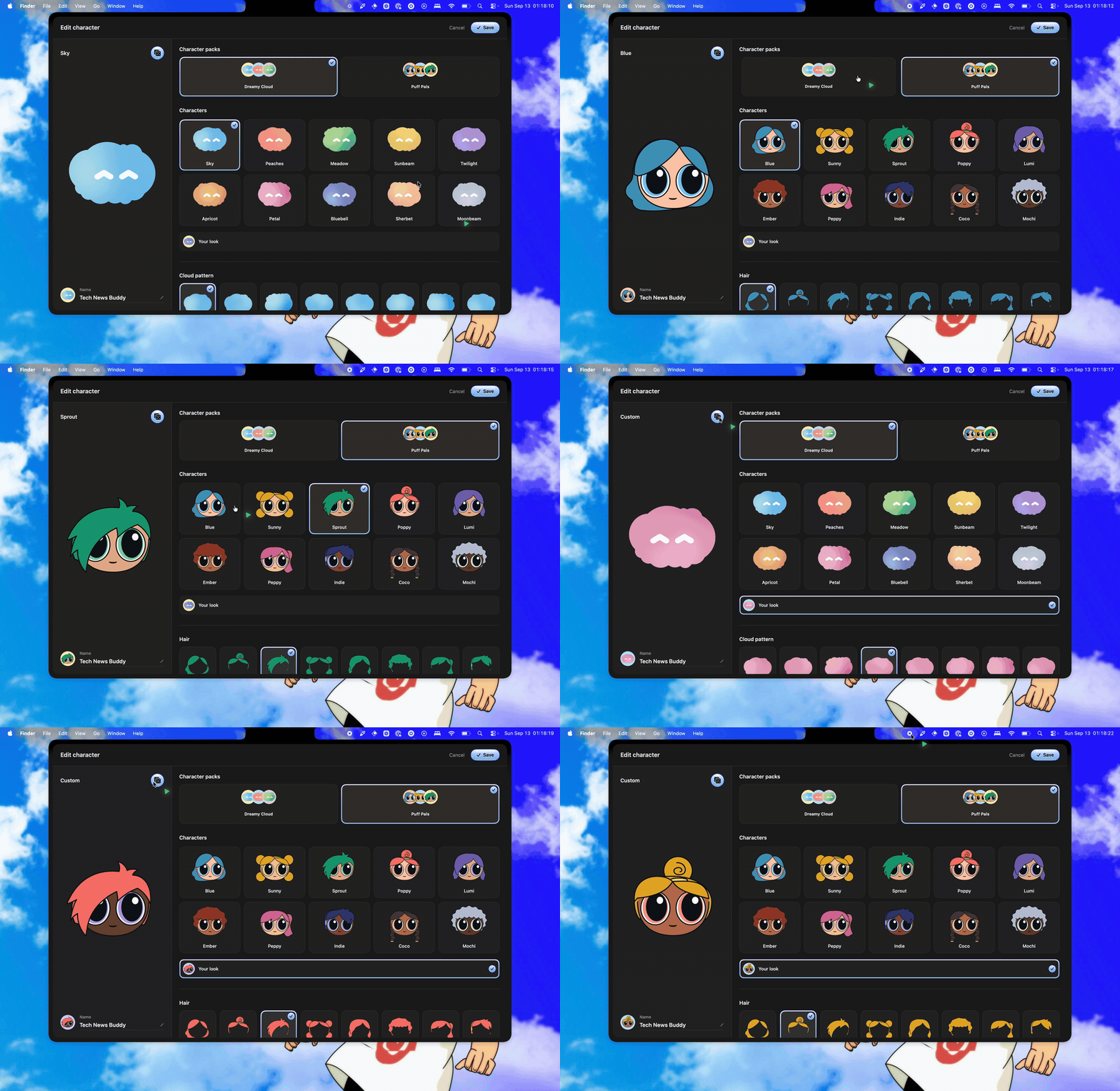
Make them yours: Choose from Dreamy Cloud and Puff Pals, then customize your Clicky's look. Their faces react as they listen, think, and talk, and doze off when you stop them (˘ω˘) The same face and color follow the Clicky into the notch and the card at the top right while it works.
Keep your people close: Pin your go-to Clickys, search your conversations, and archive chats you're done with. Status indicators show who's working, who needs you, and which results you haven't read yet.
Your earlier work is still here: Everything you ran in older versions is still here. Flip the legacy toggle in Settings and it shows up in your Clickys list. Open one to continue the work, or move it into a new or existing Clicky. HeyClicky asks before moving it and carries the earlier work along.
voice & conversations
Just talk to your Clicky: Hold your voice shortcut in a Clicky's chat to give it a task or follow up directly. Your words land in that conversation. Type whenever you prefer, and send changes while it works without losing your original request.
Ask from anywhere: You don't have to open Home to work with them. From any app, ask 'what's running right now?', 'tell Launch Scout I like this shirt too', or 'make me a Clicky that cleans my desktop every morning', and HeyClicky routes it to the right one or founds a new one.
Follow-ups know who you mean: Ask "how's it going?", "what did it find?", or "retry it" and HeyClicky uses the Clicky's progress, recent results, and the chat you were just viewing. Spoken updates name the Clicky, so "yeah, do that" can go back to the right one.
See the work as it happens: Live progress appears in the conversation, with the work steps tucked away once a task finishes. Stop a task, retry a failed one, or let different Clickys work on separate jobs. Approved suggestions waiting on a busy Clicky stay in that Clicky's queue.
Easier to read long chats: Older messages load as you scroll up, new replies leave you where you're reading, and a jump-to-latest button gets you back. Conversations and their scroll positions are remembered when you switch away and return.
HeyClicky remembers more of your recent conversations (40 messages, up from 20), plus everything you said in the onboarding interview.
files, apps & settings
Bring files into the conversation: Drag files into a Clicky's chat, attach them, or paste files and images with Command + V. You can send an attachment on its own, and previews make it easier to see what you're sharing.
Open the result right beside the chat: Preview documents, PDFs, and images inside Home, expand them for a closer look, or open them in their app or Finder. Each chat remembers its own open document, and Markdown previews update as the file changes. Animated images play in documents too.
Connect your own tools: Add custom MCP connections alongside the built-in app catalog, using a server URL or a local command. Supported connections can sign in through your browser or use an API key. HeyClicky reads what the connector can do so your Clickys know when to use it.
Clearer connection status: Apps show when they're connecting, ready, or need you to sign in again. Connecting or changing a tool updates what the voice assistant knows about it, without waiting for a fresh conversation.
Settings, at home: Manage apps, account settings, voices, and shortcuts inside Home. Voice previews and shortcut recording are easier to reach, and the update control tells you whether to download an update or install and relaunch.
Skills are on pause: We've removed Skills for now. We're still figuring out the right way to make them useful, and we plan to bring them back in a new form. If you miss them, please let us know on WhatsApp or at hi@heyclicky.com. Tell us what you used them for <3
suggestions
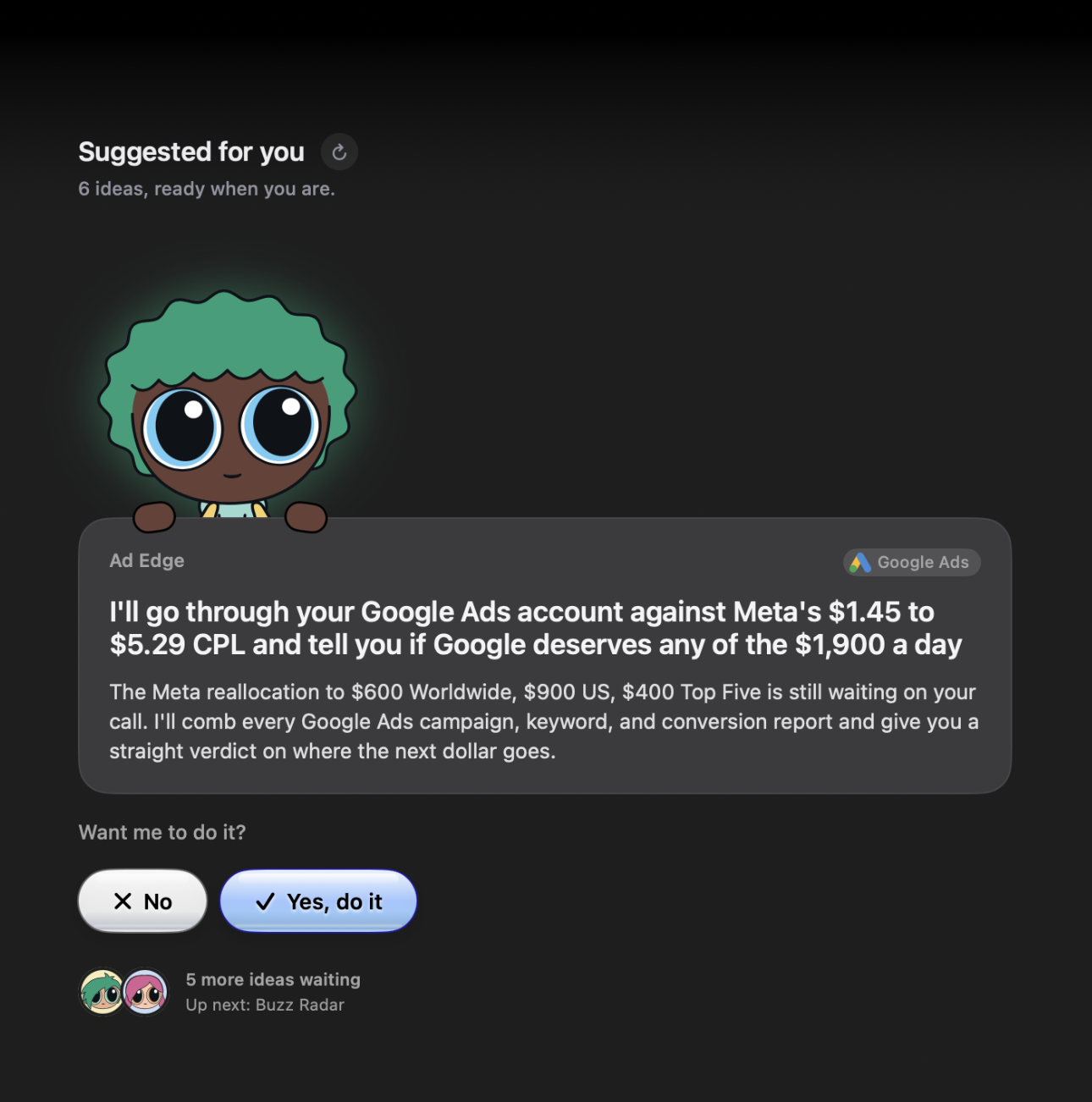
Suggestions made for you: Clickys dig into recent work in your connected apps and relevant web research to suggest concrete things they can help with. Suggestions have their own place in the sidebar, with one idea at a time. Research uses read-only access to supported connected apps; the proposed task waits for your go-ahead.
Say yes, skip, or adjust it: Say "do it" to start the suggestion you're looking at, or "show me the next one" to skip. Want something a little different? Hit Adjust and talk through the change. You can cancel and come back to the same proposal.
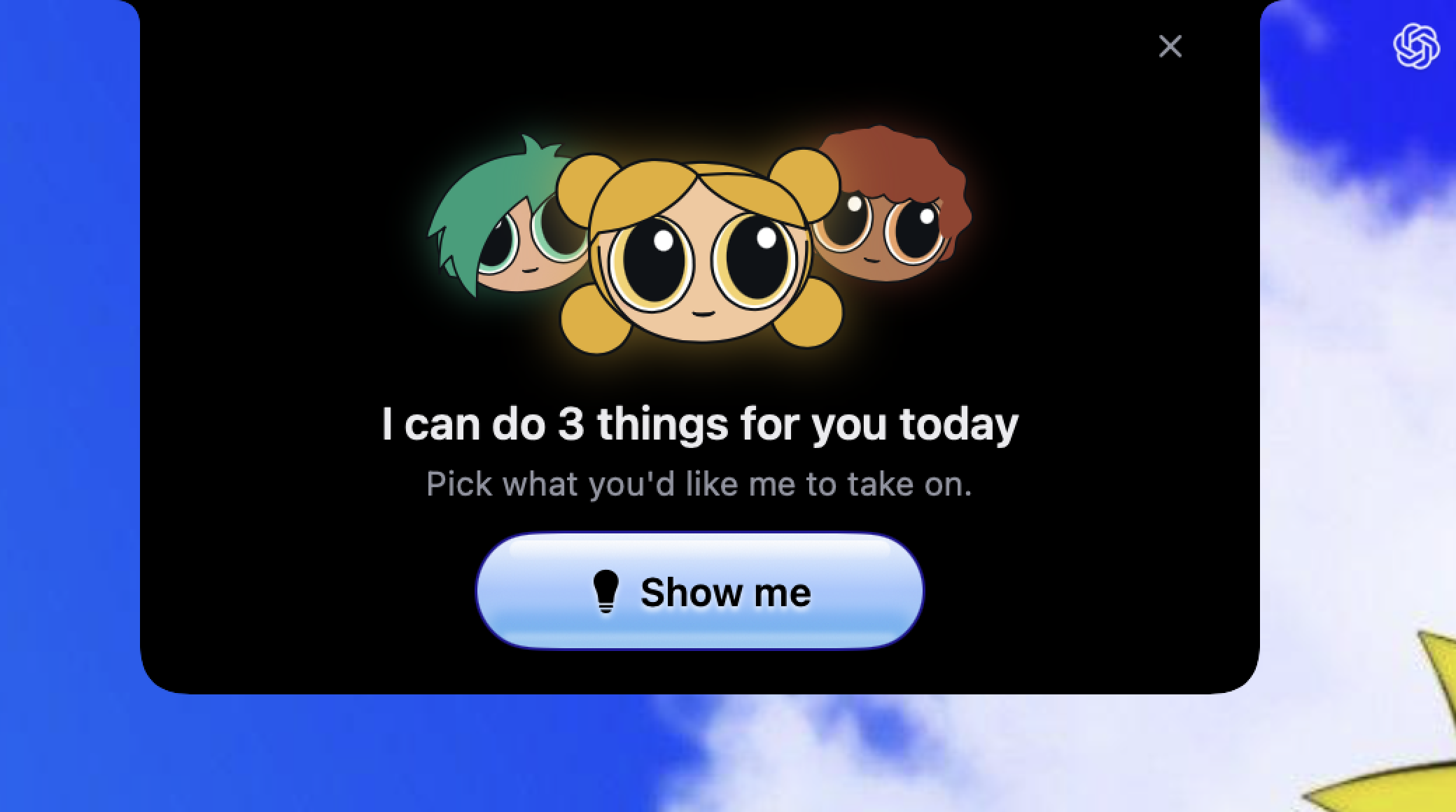
A little morning hello: When morning ideas are ready, your Clickys can pop out of the notch with a short greeting and a Show me button. The invitation waits when HeyClicky detects a call, screen sharing, or Focus mode, and stops reminding you once you've opened Suggestions or dismissed it.
Deeper research behind them: We rebuilt the whole pipeline: one researcher per connected app plus the public web, reading full documents from the last 72 hours, then an editor picks the ideas worth your time. Say no to one and tell it why, and tomorrow's batch takes that into account.
routines
Put repeat tasks on a routine: Ask a Clicky to repeat a task, like "give me a daily briefing" or "check this every few hours". Routines run on this Mac while HeyClicky is open. Open the Clicky's profile to pause, resume, run now, or delete one.
Results without the interruption: Routine results arrive in the same chat with an unread indicator, without a spoken announcement or completion chime. If your Mac was asleep, a missed routine catches up once after waking instead of piling up every missed run.
Recovery built in: Routines wait while you're offline or their Clicky is busy, and retry failed work after a short delay. Paused routines stay paused, and archiving a Clicky pauses its routines too.
computer use
You decide when a Clicky can control your Mac: Before it clicks or types, a Clicky asks for permission in its chat and the floating panel at the top right. Choose "Allow once", "Always allow", or "Not now", or answer by voice. Extra-usage approval requests can be answered by voice too.
A separate browser window: Browser tasks can use their own window in Chrome and other Chromium browsers, using your signed-in profile. For work on the page you're already viewing, HeyClicky asks whether to use that tab or a separate window. Non-Chromium browsers may fall back to opening a tab.
improved & fixed
Permission setup is less fussy: Fixed duplicate permission prompts and stuck setup transitions. The Screen Recording guide points to the screen-and-audio list when it can identify it, permission retries stay available, and skipping the tour clears its drawings and speech.
Clearer sounds and replies: Refreshed the sounds for task starts, finishes, and requests for help. Completion announcements are less likely to go missing or get clipped at the start, and cancelling a suggestion adjustment stops its pending speech too.
Team checkout accepts promo codes: Team admins can now enter a promotion code directly at checkout.
Lighter on your Mac: Home idles at 3 to 5% CPU and switching between Clickys stays under 5%. Our first build sat at 36 to 43% doing nothing and pegged a whole core while a Clicky worked, so we fixed that before shipping.
Bluetooth headphones: Finish cues pre-roll so a cold connection can't swallow them, and the squeak at the start of the first spoken reply is gone.
Dictation works with Home open, and only lands in Home's composer when Home actually has focus. A background window never steals words meant for another app.
On a Studio Display or other external monitor, the menu bar read as a permanently open menu, so voice holds fell back to the spoken router and Escape got swallowed. Fixed.
The screen permission card could stay stuck on 'Pick a display' after you'd already granted access.
Buttons on the top-right card could miss their targets, and the Clicky list reordered itself while Clickys worked.
Clicky chats stalling on launch with a long history, live work lost across a relaunch, and morning suggestions silently never showing up after a relaunch.
v1.0.48Aug 25, 2026Mac
Walkthroughs go the distance
This is a continuation of the last update, 1.0.47, making HeyClicky more reliable and more accurate. Almost every line below started as a report from one of you, and the numbers are from our own logs. Keep them coming <3
Watch the full demo on X.
new
Always approve for agents: Long agent tasks kept pausing to ask for extra-usage approval. Hit "Always approve" once and they stop asking (you can turn it back off in Settings → Agent).requested byChrisSSubhash
Shortcuts your way: The dictation and hands-free shortcuts now take any held combo or a double-tap, so bindings like Control Control finally work. One double-tap starts hands-free dictation, the next one stops it :)reported byVVladJay
The Log Out row in Settings now shows which email you're signed in with.
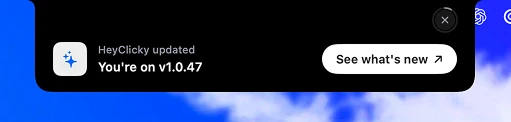
What's new, in the app: This changelog is now linked from Settings → Support & Updates, and after an update the notch shows a little "See what's new" card ^-^requested byCCarlos
After an update, the notch tells you what's new.
walkthroughs
Up to 15 steps: Step-by-step walkthroughs used to stop at 5 steps even when the task clearly wasn't done. The budget is now 15 \(^o^)/reported byTTheoIIsaac
No more lost context: When a walkthrough handed you manual work and you said "continue", it could forget the goal, repeat steps, or start over. It now remembers the goal and every completed step across the pause.reported byZZenyi
audio
AirPods stop clipping replies: With Bluetooth earphones, macOS could switch audio profiles mid-reply and cut off the first seconds of the answer. The switch now waits for post-reply silence, and playback pre-rolls so a cold Bluetooth link doesn't swallow the start.reported byYYogeshMMads· 117 users hit the Bluetooth cutout last month
No more going silently deaf: A wedged microphone used to leave voice dead until a restart, with no sign anything was wrong. HeyClicky now fails over to your Mac's built-in mic and tells you what happened in the notch.reported bySShivaAAbdulla· 300 users hit mic failures last month, 104 stuck until a restart
Pro audio interfaces work: Interfaces like the Behringer UMC404HD captured zero audio because of a sample-format mismatch. Fixed.
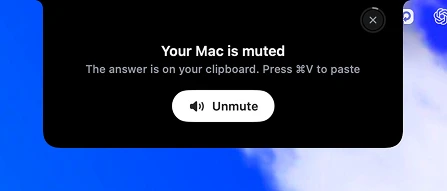
Muted speaker, answer kept: A reply that would play into a muted speaker is copied to your clipboard instead, with a one-click volume fix in the notch.
Muted? The answer waits on your clipboard.
dictation
Sturdier insertion: Paste now respects your keyboard layout (Dvorak and Colemak friends, it works now), the clipboard restore no longer races slow apps into pasting your old clipboard, clipboard managers stop archiving your dictated text, and no more stray trailing space after Chinese, Japanese, or Thai.reported byTSThunderstick StudioTTristenPranav
Dictating into a terminal can never run your words as commands. Newlines are collapsed before insertion.
agents
Works on managed Macs: On company Macs with IT-managed Codex policies, every agent spawn failed with a cryptic error. HeyClicky now adapts to the allowed policy and runs.reported byMike· 31 failed spawns across 6 users
A new computer-use engine: Computer use moved to a faster native driver. Background clicks stay scoped to the target window and never move your real cursor.
fixed
A file dropped on the notch could silently vanish, and typing stayed dead afterward, especially on the macOS 27 beta. Drops now always attach, and typing recovers.reported byAAkshayScottSSebastian· 154 users dropped 473 files last month
HeyClicky was blind to its own windows. Ask about the Skills Library and it can now actually see it.reported byBBillCChase
The notch snapping shut instantly over an empty desktop instead of animating.
The Agents search icon hiding under the hardware notch, and search leaving the notch pinned open.reported bySSebastian
A cold-start race where the first voice turn could run before your speech was heard.
HeyClicky now knows the actual current time on every turn, and repeats "let me check that for you" a lot less in long conversations (¬_¬)reported byRRyan
v1.0.47Aug 13, 2026Mac
Whole-document understanding
Most of this release came from you telling us what was broken, and every number below is from our own logs. Thank you, and keep it coming <3
new
Whole-document understanding: Ask about a PDF, file, or web page and HeyClicky reads the entire thing as context, not just what's visible on screen. Our most-requested capability \(^o^)/requested byJJamesTTanayaMMadsMike& more
improved
Works outside the US: Requests from Asia and the Middle East were routed through a Hong Kong data center our AI providers block, so HeyClicky would listen, think, then silently give up. It now detects the block and re-routes through the US automatically. No VPN needed :)reported byJoachimJJuanito· 28 users in 9 countries affected
Smarter answers: Detailed and screen-related questions now route to a deeper model.
Lighter on your Mac: Removed an always-running animation and moved sound playback off the main thread. Fixes high idle CPU (up to 45% on some Macs) and a freeze after double-tapping Control.reported byScottRicardo· 1,600+ users hit the freeze last month
No more cut-off answers: Deep answers had a hard 60-second timeout and got cut mid-thought; some need a few minutes. They now run to completion.reported byJayAAbhishek· 58 users affected last month
dictation
Long recordings are safe: Sessions over 10 minutes, including hands-free ones, were silently dropping. They now save reliably, and every finished transcript gets a local backup.reported byVikrantPranav
Interruptions don't wipe your work: A WhatsApp call or a mic change used to discard the whole dictation. HeyClicky now keeps everything you'd already said { ^-^ }reported byPranav
Works in more apps: Text now inserts correctly in WeChat, WeCom, Chromium browsers (Chrome, Brave, Arc), and Electron apps like Slack, VS Code, and ChatGPT, instead of falling back to the clipboard.reported byJJamesMatthewVVardanYanivTSThunderstick Studio· 1,836 users affected last month
Faithful cleanup: No more rewriting or adding words you didn't say (¬_¬)reported byFarzaMMads
fixed
Lag right after a background agent task finished.
Account deletion failures are no longer silent, and the false "Nothing was removed" message is gone.
Blank System Settings window, plus the Help menu now opens.reported byEstiak RhomanGuillermo
Leftover drawings when closing text mode, and stale text in guided tours.reported byFarza
security
Sign-in credentials now live in the macOS Keychain.
v1.0.46Aug 1, 2026Mac
More reliable voice
The overall voice experience should be more reliable now. Keep the feedback coming :)
improved
Calmer voice: Behavior fixes from a week of using it ourselves. Web lookups now happen silently instead of being narrated, and the voice stays calmer ( ˘▽˘)
Faster first response: The first voice interaction after opening the app is quicker. We warm up the session and network paths before you start speaking.
removed
Proactive agents: When we launched proactive agents, we told you: if any of this makes you uneasy, let us know. Some of you did. We listened. Proactive agents are off, and all the local activity tracking that powered them is gone. No app names, no tab titles, no accessibility data, and the old local database deletes itself on update. We still believe in the idea, and we'll bring it back when it feels magical without feeling watched.
v1.0.45Jul 31, 2026Mac
Faster realtime voice
A big change under the hood. We rewrote the voice harness, wrote down every moment that felt slow, robotic, or wrong, and fixed them one by one. If anything feels off or you spot a regression, please send it our way. Thanks <3
improved
Noticeably faster: Quick questions get a fast model, deep or complex ones go to a frontier model. A little router decides on every question, so you don't pick anything. One user this week: "clicky is fast af lately. this feels so much better."
Talks more like a person: Fewer greetings, fewer fillers ^ ω ^ Still lots to improve here, keep the feedback coming.
new
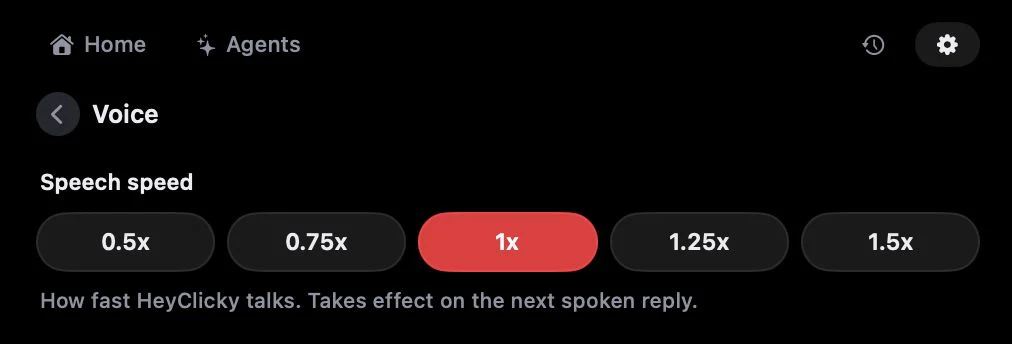
Voice speed control: Everyone listens at their own pace. Some of you asked for a faster HeyClicky voice, a few wanted it slower. Now it's yours to set in Settings → Voice, from 0.5x to 1.5x.
Speech speed lives in Settings → Voice.
privacy
Deleting your account now erases your analytics data too, and we locked down a data-exposure hole found in a security audit.
v1.0.44Jul 23, 2026Mac
HeyClicky for teams
A few of you have asked for a team version of HeyClicky. So we built a v0.
new
One subscription for the whole team: A mix of Pro and Max seats, and a small dashboard to manage members and billing.
Team-shared skills: If someone on your team makes a skill, they can share it with just the team in one click. It stays private within your team.
It's early, so we're setting teams up by hand right now, and we just onboarded our first pilot customer. If you want to try it with your company, email hi@heyclicky.com and we'll set you up \(^o^)/
The team dashboard: members, seats, and billing.Everything we shipped that week, in 55 seconds. Watch on X.
v1.0.43Jul 22, 2026Mac
Agent retries and routing fixes
A quick one, mostly fixes (¬_¬)
new
Retry for failed agents: Failed agent cards now have a retry button, so one flaky run doesn't mean starting over.
improved
Works in more places: Changed API routing so HeyClicky works in regions that were getting location-blocked, like South Korea ( ^_^)/reported byJoachim
fixed
Reliability issues in always-on realtime mode.
Some microphone crashes, including our top native crash.
v1.0.42Jul 20, 2026Mac
Reliability fixes across the board
This should fix the reliability issues a bunch of you hit over the last two days. It was a combination of stuff piling up with the huge traffic we're getting. Most of this release came straight from your bug reports, so keep them coming! ^-^
fixed
Fewer freezes: If HeyClicky was hanging or the cursor got stuck while you were in DaVinci Resolve or other heavy apps, that should be gone now.
Push-to-talk: If you pressed the hotkey (Control + Option) and your request just got dropped, or it stopped responding until you restarted the app, fixed.
Works on strict networks: If you're on a corporate or filtered network and HeyClicky couldn't connect, or your paid plan wasn't showing up, that's fixed too.
Agents: If you kicked off an agent task and nothing happened, fixed.
Plus smaller stuff: the notch now stays put when you switch or reconnect displays, cleaner text-mode controls with a close button, and a tidier integrations popup.
v1.0.41Jul 20, 2026Mac
A new face, agents unstuck
A quick one!
I got a new home. The new landing page and logo. Watch on X.
new
A new face: We gave HeyClicky a fresh new logo (・∀・)
The new face.
payments
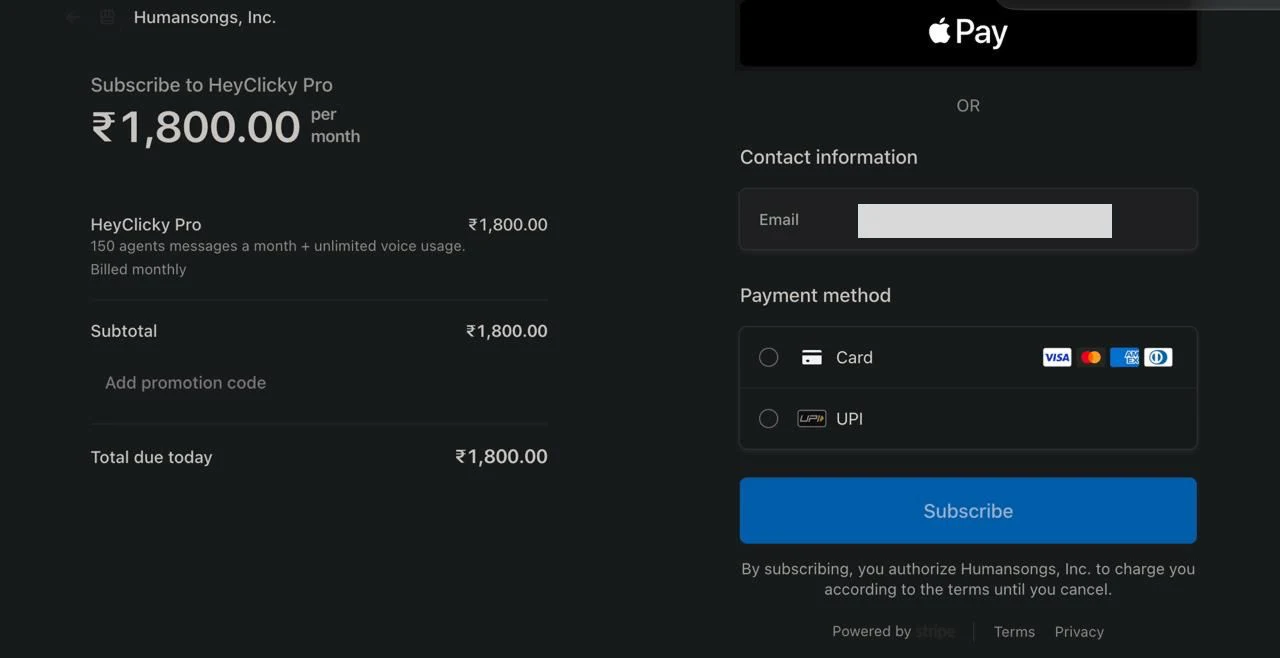
UPI support: For our Indian friends: you can now subscribe with UPI, priced in rupees 🇮🇳 Enjoy!tested byRRohan
HeyClicky Pro in ₹, with UPI right at checkout.
fixed
The agent getting stuck issue. If you were affected, please update and let us know if it works :)
v1.0.40Jul 17, 2026Mac
A hands-on tutorial in onboarding
HeyClicky is a hard product to explain. There's no window and no buttons to click around, it lives in your voice and your keyboard shortcut, and a lot of people never discovered half of what it can do.
new
Guided tutorial: New users now do things instead of reading about them: say a first hello out loud, watch HeyClicky draw on the screen, circle something and ask about it, draft an email reply by voice, and try dictation in a real text box. Takes about two minutes. You've already been through onboarding so you won't see it, but if you ever show HeyClicky to a friend, their first two minutes should make a lot more sense now (⌒‿⌒)
Hand-drawn annotations: When HeyClicky draws on your screen, the shapes now look hand-drawn, Excalidraw-style, instead of machine-perfect.
The new hands-on tutorial.
v1.0.39Jul 15, 2026Mac
Dictation polish, and a privacy step
A day-two batch for dictation, plus a privacy change we want on the record.
improved
No more em dashes: Dictation cleanup no longer inserts em dashes into your text. We don't use them, so neither should it (¬_¬)
Updates come to front: The update window now comes to the front when you hit Check for Updates, instead of hiding behind your windows.
Lighter on your battery: The skill-panel orbit animation pauses while it's offscreen.
privacy
We removed proactive activity tracking and all accessibility-data collection, and the afternoon proactive slot went with it. Morning suggestions now wait until at least 6am your time. (The full proactive shutdown came in v1.0.46.)
v1.0.38Jul 14, 2026Mac
Dictation tuning
A quick one.
improved
Dictation now runs on two models, one for speech-to-text and one for cleanup, with timing measured per utterance. Faster and more accurate.
v1.0.37Jul 14, 2026Mac
Dictation, and screen-aware dictation
We've been using it internally for a few days and it's really good. As fast as Wispr Flow, if not faster, and it formats your text nicely. There's a full demo below if you don't wanna read :)
Watch the full demo on YouTube.
new

Super fast speech-to-text: Dictate into any app on your Mac. Gmail, Claude, Slack, it works everywhere. Press and hold Fn + Control, speak, and the text streams in at around 450ms. Double tap Fn + Control for hands-free mode, and change either anytime in Settings → Shortcuts.
It learns your words: Grammar and spelling get cleaned up for you. And if a word comes out wrong, just edit it within about 20 seconds and it's added to your dictionary automatically (also editable in Settings → Dictionary).
Multi-language: It auto-detects your language, with 50+ supported. If detection is a bit off, set a default in Settings → Dictation.
Unlimited dictation is included on Pro and Max. On free, there's a generous limit, so try it out :)
Hold Fn + Control, speak, and the text streams in.
screen-aware
Ramble, and let HeyClicky write it: Many times when you're replying to an email or writing a follow-up prompt to Claude, you don't even really know what you wanna say. Now you can just ramble. Open the email, press Control + Option, and say "HeyClicky, type a reply to this person in the text box here". It takes a screenshot, understands what you're replying to, and inserts a draft written in your voice, based on HeyClicky's memories of you. You can even activate a skill (our Y-Combinator skill, or Write Like Farza lol) and it writes like the skill.
fixed
Dictation falling back to the clipboard in Electron apps like Discord.
Clicks at the start and end of the notch UI chimes.
v1.0.34-36Jul 13, 2026Mac
The road to dictation
Three quick builds in one day getting dictation ready for launch, plus some goodies that snuck in ^-^
new
Hold-to-dictate: Promoted out of developer preview and on by default, with shortcuts, hands-free mode, and cancel. Streaming plus a faster engine made it about 3.4x faster.
Cursor customization: A dedicated Settings page for customizing your cursor.
improved
Skills 2.0: Capability-aware skill creation and better routing, a My Skills filter in the library, and creators get emailed when their skill is approved.
Text insertion now prefers typing directly into the field over the clipboard.
A redesigned DMG install window.
fixed
Account deletion failing with a server error.
The top macOS 26 crash.
v1.0.33Jul 6, 2026Mac
Spatial context, skills, proactive agents, memory
Four launches in one go, all in production now. If you have any questions on how this stuff works, just ask!
spatial context
Point, circle, scribble: When you talk to HeyClicky, you'll notice a little trail of paint it leaves behind. Draw on your screen to point at or circle the specific thing you want the AI to focus on. Especially useful when you have a lot going on, like complex editing software or a complicated diagram. It's very intuitive, try it out!
Spatial context in action. Click to watch the full video.
skills
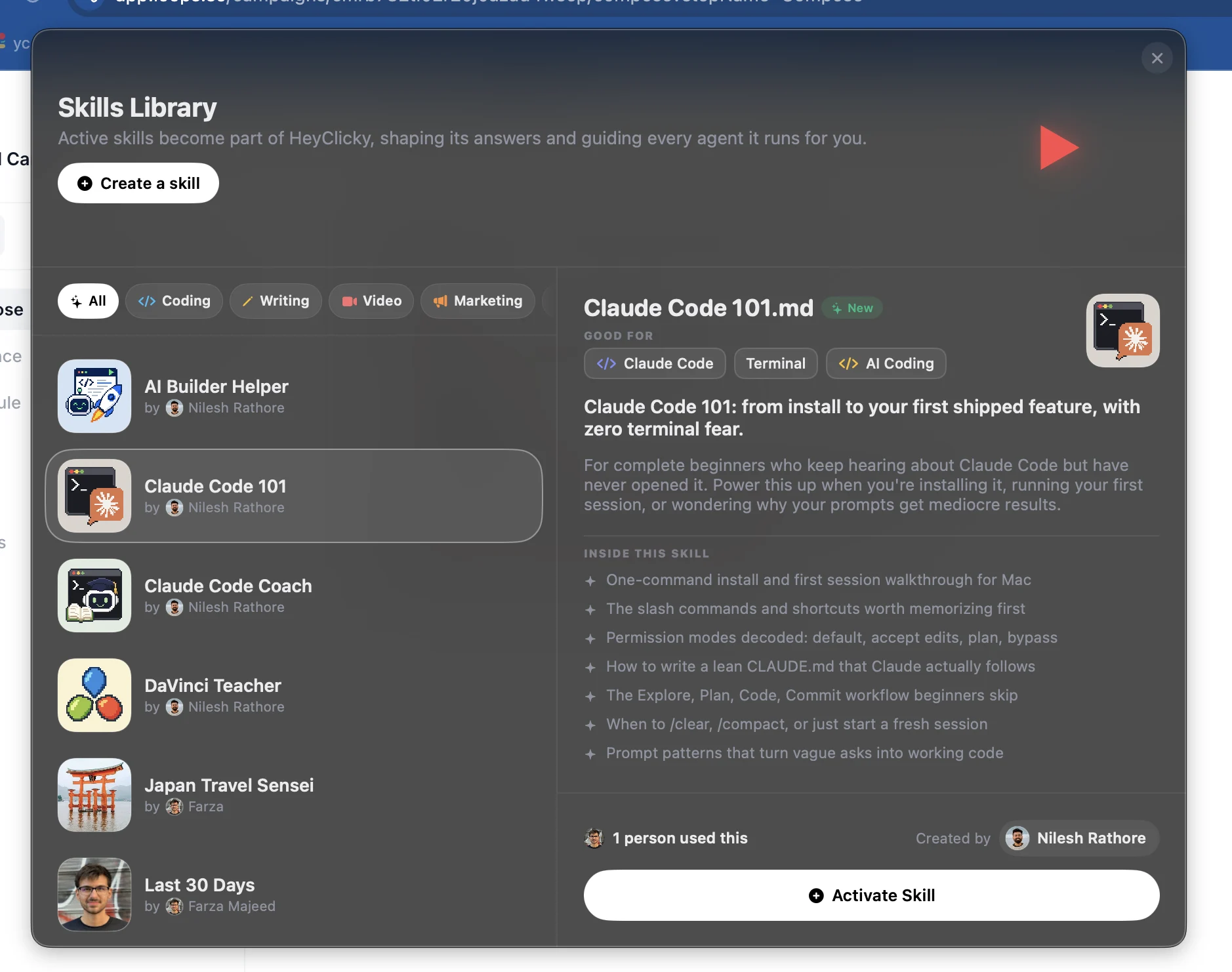
A skills library: Skills literally give AI superpowers, but installing them from random GitHub links is annoying. So we built a library: hover your notch, click add skill, and activate any of about 100 community-built skills in one click. When you talk to HeyClicky or run an agent, the skill is active. Want your own? Hit "Create a skill" and type what it should do.
The community skills library, one click to activate.
proactive agents
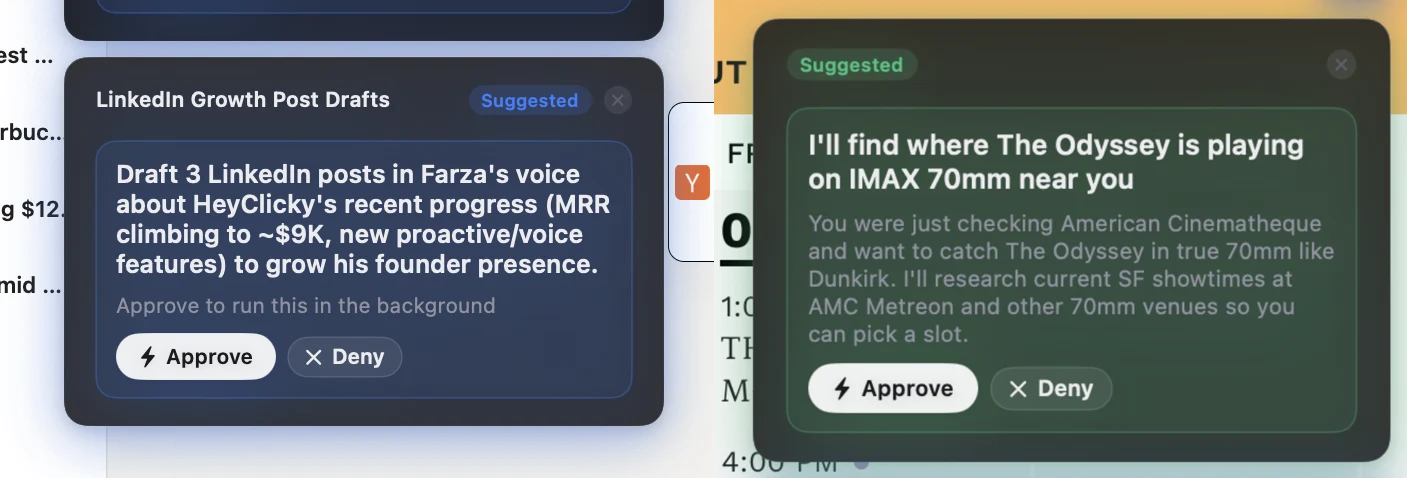
Agents that suggest themselves: 99% of people don't even know the extent of an agent's power, so how would you know what to ask for? Every morning and afternoon, HeyClicky recommends two personalized agents at the top right of your screen. All you gotta do is click approve. We found ourselves getting magical recommendations for agents we had no idea we even needed.
(A note from the future: we later turned proactive agents off over privacy unease. See v1.0.46 above.)
Suggested agents, one click to approve.
memory
It remembers: The more you use HeyClicky, the more it remembers. Your name, your language, how you like your CSVs named, everything. Under the hood it maintains two files: PROFILE.md for your habits and general preferences, and VOLATILE.md for the project you're working on right now. Both get injected into the voice model and the agent.
also
Library mode: typed replies stream as text and get read aloud.
The realtime voice model upgraded to gpt-realtime-2.1.
Fixed billing blips that paywalled and double-charged paid users. Sorry about that one.
Fixed guided walkthroughs hanging on typed sessions, and a duplicate spoken acknowledgement when handing off to the deeper model.
v1.0.32Jul 4, 2026Mac
Delete your account, if you must
Small but important.
new
Permanent account deletion: You can now permanently delete your account from Settings. Yours to keep, yours to leave.
improved
Walkthrough drawings are no longer capped at 3 shapes on screen.
(Also hiding in this build behind flags: the skills library and proactive agents, warming up for their launch.)
v1.0.31Jul 1, 2026Mac
Claude Fable 5 by default
Hi hi! A smarter default model, and a batch of fixes.
Watch the Fable 5 demo.
improved
Claude Fable 5 is now the default: We found it's really good at understanding your screen. Replies might be a tiny bit slower, but way more accurate. Let us know if you notice a difference :)
Always On is headphones-only for now: Without headphones it was pretty broken, so we restricted it. Always On is still experimental, expect some bugs if you use it.
The cursor color picker moved to its own Settings page.
fixed
Agents for new users: The Codex we bundle inside HeyClicky broke, so agents were failing, especially if you'd just signed up. Really sorry if you hit this. It's fixed now.
Highlights and drawings: A highlighted area now disappears after 2 seconds. If HeyClicky drew something like a polygon to explain a concept, it stays while it's speaking, and once it stops, everything clears. Nothing stays on your screen.
Clearer agent approval prompt: When an agent runs long, we ask you to approve using more messages from your existing plan. Some of you thought it meant we were charging your credit card. We're not! Just clarified the wording, let us know if it's still confusing. Ty!!
v1.0.30Jun 29, 2026Mac
A quick fix
One that mattered.
fixed
A crash when purchasing Pro, plus a batch of our top reliability fixes.
v1.0.29Jun 28, 2026Mac
Yearly billing
Save 20% by going yearly, and a stack of fixes.
new
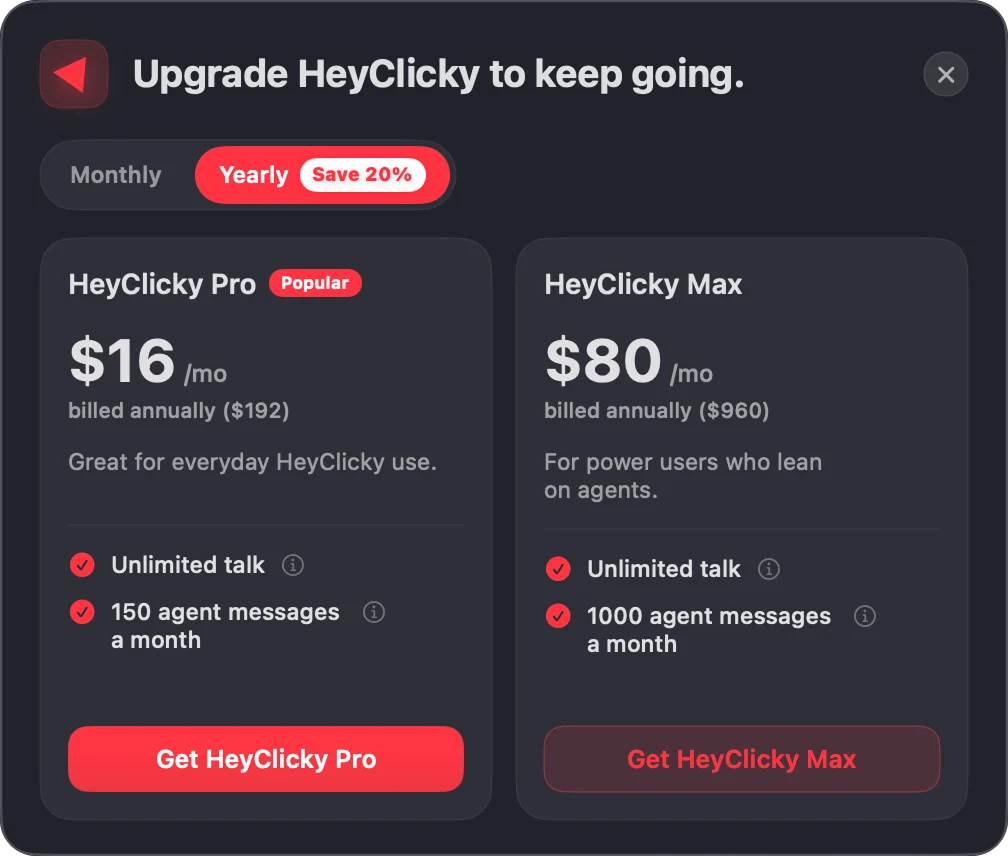
Yearly plans: 20% off with a monthly/yearly toggle right on the paywall :)
A little haptic when you hover the agent HUD.
Go yearly, save 20%.
fixed
Notch jank when submitting text, and a macOS 26 crash from panel auto-resizing.
The cursor landing on the wrong monitor after rearranging displays.
Text drafts that were claimed but never inserted (with a clipboard fallback just in case).
Mic capture now recovers when your audio device disappears mid-conversation.
$10k MRR, celebrated at a gas station. Watch on X.
v1.0.28Jun 23, 2026Mac
HeyClicky learned 89 apps
Guidance got a lot smarter.
improved
App skills: HeyClicky now carries teaching skills for 89 apps, with browser-site matching, so guidance inside your tools is much sharper.
Quieter learning: The skill-learning UI calmed down: one cursor bubble per app instead of a notch card every time.
Morning greetings now show any time between 7am and noon. Good morning ☀(^_^)☀
We went to Demo Day. Watch on X.
v1.0.27Jun 20, 2026Mac
Notch only
A small one.
new
Feature Request and Community links in Settings. Come say hi! ( ^_^)/
improved
The menu-bar icon is gone. The notch is now HeyClicky's only home.
fixed
Cursor lag in DaVinci Resolve caused by blocking accessibility queries.
v1.0.26Jun 19, 2026Mac
Draw on your screen, realtime computer use
We have been shipping a lot. If you follow us on Twitter or Instagram you may have already seen some of these, but here's all of it in one place.
new
HeyClicky draws on your screen: One of the biggest things people use HeyClicky for is learning. FL Studio, Cursor, Claude Code, anything. Now it can draw directly on your screen and walk you through step by step, made much smarter by skill files injected based on the program you're in. It even detects when you click where it told you to, and moves you to the next step, like a real teacher (⌒‿⌒)
Watch the draw-on-screen demo.
realtime
Control your computer with your voice: We shipped the world's first realtime computer-use system. It's very early, but very cool. "Play Lucid Dreams by Juice WRLD on Spotify", "Open up my Stripe dashboard for me", "Check my Google Calendar, what do I got today?" Try always-on mode by pressing Control three times (requires headphones).
Watch the realtime demo.
improved
A way more powerful agent: Way better at using the integrations you give it. The power users of our agent are people using it to run their business: "Look at my Supabase and tell me the top 5 users I should talk to", "Make a Mac app to help me keep track of my todos", "Research new customers in my niche and put them in Notion CRM for me". Honest note: it's not good at controlling your computer yet, but very good when you authenticate with your tools directly.
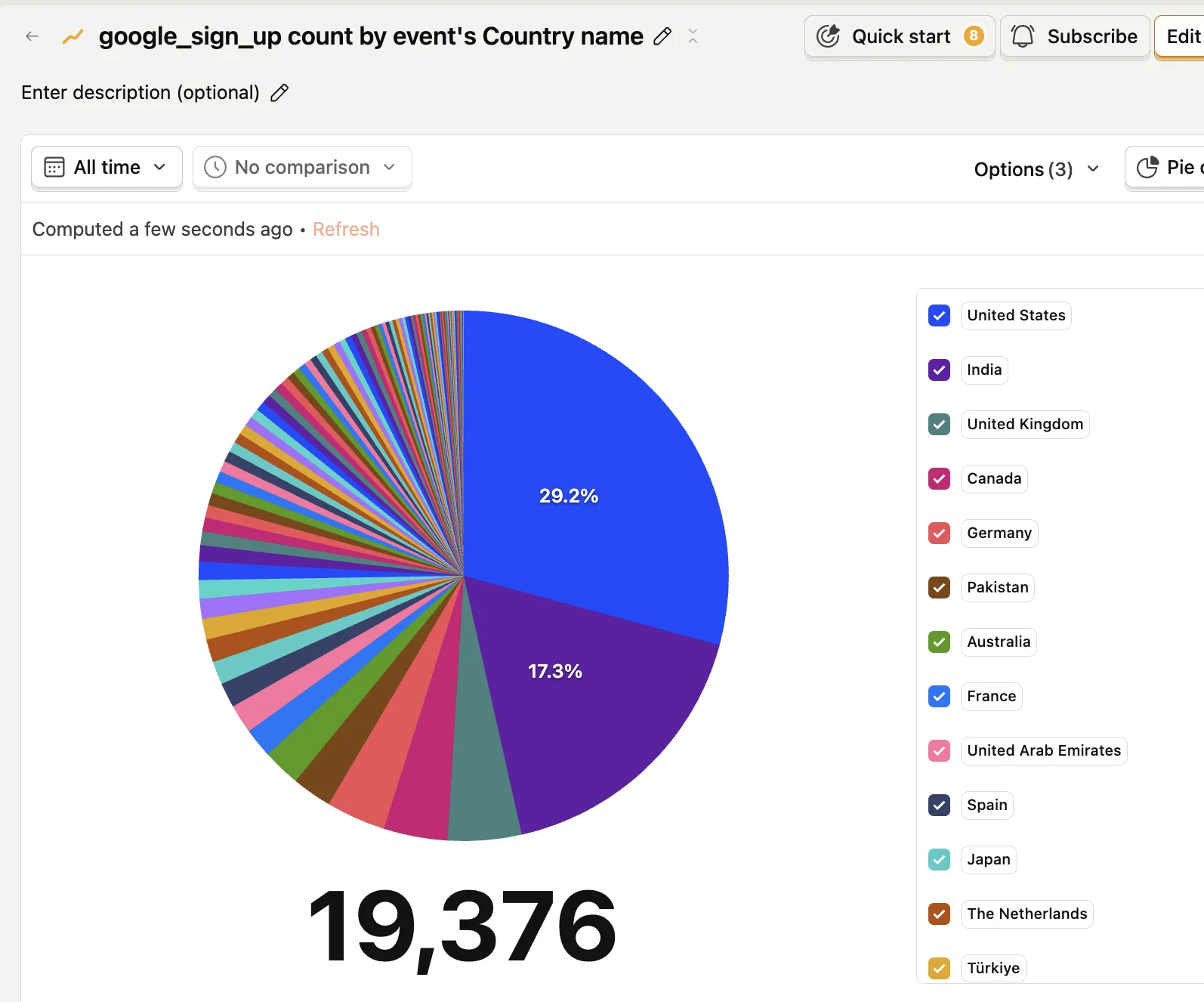
6x faster, and 70+ languages: Replies are now near instant. If you ask something complex about your screen, it hands off to a more powerful model and thinks longer, so you get speed while keeping quality. And since we saw users from 100+ countries, HeyClicky now speaks 70+ languages: Spanish, Portuguese, French, Japanese, Russian, Chinese, German, Korean, Hindi, and many more. Try talking to it in your own language!
Signups by country. The reason we went multilingual.
v1.0.25Jun 18, 2026Mac
Draw for HeyClicky
The start of something we'd later name spatial context.
new
Screen highlight: Press Ctrl + Option and draw on your screen. Annotations are now always-on, so you can circle the thing you're asking about. (This grew up and publicly launched as spatial context in v1.0.33.)
improved
An eager agent: The agent now acts on write actions immediately and only asks for confirmation on deletes, emails, and money.
fixed
The double-Control input box not opening when Caps Lock is on.
High CPU from agent HUD chips re-rendering every frame.
v1.0.24Jun 14, 2026Mac
No more frozen keyboards
A reliability release.
fixed
Keyboard freeze: Fixed a system-wide keyboard freeze, and a missing screen permission now routes you to the notch instead of failing silently.
The always-on echo loop. Proper echo cancellation means you can barge in over your speakers now.
HeyClicky quitting when another app triggered "Hide Others".
Keyboard focus not being released after text mode.
new
Tidier agents: The floating agent HUD folds into the screen corner as an accordion, and text responses get an inline follow-up composer.
improved
An honest answer: Ask "what model are you?" and HeyClicky now tells you the truth about the models in its voice loop ^ ω ^
Taking big steps. What we were shipping that week. Watch on X.
v1.0.23Jun 8, 2026Mac
Drag files into the notch
File drag-and-drop, and a pile of quality-of-life.
new
Drag files in: Drag your files into the notch and start chatting about them. Available now { ^-^ }
The double-tap text box now opens instantly, and text responses get a copy button and selectable text.
Drop a file on the notch, start talking.
improved
Realtime voice now follows Bluetooth device switches instead of dying on route flips.
Links now open directly (YouTube, Maps, searches) instead of just being read aloud.
In-app bug reports now include logs, so we can actually fix your thing.
fixed
Compat mode can no longer get stuck hidden.
v1.0.22Jun 1, 2026Mac
Interrupt me anytime
Voice got more polite about being talked over.
improved
Barge in: In always-on mode you can now interrupt HeyClicky mid-sentence and it will actually hear you.
Any song on Spotify: Spotify playback now searches any track, album, or artist by name. (Until now it was deliberately restricted to AC/DC. Long story ¯\_(ツ)_/¯)
fixed
The notch stuck on "Thinking…" after a cancelled voice turn.
Never touch me again. Watch on X.
v1.0.21May 30, 2026Mac
Clicky is now HeyClicky
The big rename, and a big release to go with it.
new
HeyClicky: We renamed Clicky to HeyClicky everywhere, app, process, and all. Same buddy, fuller name.
Realtime voice: A new realtime voice surface, now the default for voice and typed input. Plus a voice picker with spoken previews, so you can hear each voice before choosing.
Draw-on-screen guidance: The first version of guided walkthroughs: target rings, annotations, and narration, on by default. This grew into the step-by-step teacher in v1.0.26.
Google Calendar: The realtime voice can read your events and create new ones.
A Spotify playback tool. Deliberately restricted to AC/DC for now, as a joke. We'll open it up soon (⌒‿⌒)
improved
The notch is now the only home, the legacy menu-bar panel is gone, and agent history is searchable.
The default mic is your built-in mic, and the first spoken word no longer crackles on a cold launch.
removed
HeyClicky Notes. It never quite found its groove.
v1.0.20May 19, 2026Mac
A sleep fix
A tiny one.
fixed
A crash in the chime engine when your Mac went to sleep and woke back up ( ˘▽˘)
v1.0.19May 16, 2026Mac
Small tunings
A small one.
improved
Voice now speaks the full reply instead of a shortened version.
Integration suggestion popups are capped at 3 per day, and the notch waits a beat longer before expanding on hover.
v1.0.16-18May 14, 2026Mac
Notch follow-ups
Three quick builds tightening the new notch.
new
A Show in Dock toggle, and microphone selection in Settings.
improved
Reliable agent follow-ups, and voice replies are no longer truncated.
The cursor is undocked by default again (docked felt too radical as a default).
Integration suggestions got an overhaul: the full connector catalog, native Mac apps recognized, and way fewer false positives.
fixed
Rejected agent handoffs no longer bill your message quota :)
Bringing back the computer we fell in love with. The teaser we posted the day before.
v1.0.15May 13, 2026Mac
A home in the notch
New update is out. I wanna tell you what we did!!
Watch the notch + agent demo.
new
The notch: HeyClicky now has a home in your Mac's notch. This is a bit of a radical design and we're still testing it. We're not married to it, but it's feeling pretty good so far :)
HeyClicky, at home in the notch.
connections
HeyClicky connects to your stuff: In all honesty, we have no interest in shoving AI agents down everyone's throats, the whole industry is doing that already lol. But we really wanted HeyClicky to connect to more stuff. The agent now talks to Notion, Gmail, Linear, and a whole lot more: "Research new TikTokers for my product and put them in my Notion table", "Take this bug report, make a Linear ticket, and then send it to Joshua in Slack". It's endless. Try it out in settings :)
HeyClicky suggesting a Notion connection.
more
New voices: We handpicked a ton of new voices. Believe it or not, quite a few kids are using HeyClicky, so there's a bunch of kid-friendly voices now too. Pick one in settings.
Dock HeyClicky: Click dock and HeyClicky won't follow your cursor around. He'll take refuge in your notch instead. Enjoy!
A new brain: HeyClicky replies much faster, has context of your agents, and will hopefully not randomly spawn agents anymore. (If you're curious: we built our own lightweight agent harness in house.)
The week before this shipped: a new brain for agents, skills, and fixes. Watch on X.
v1.0.12May 4, 2026Mac
HeyClicky can click
This is a fat release. We usually hate long-ass update posts, but there's genuinely cool stuff here. Skim through!
Watch HeyClicky click for itself.
new
HeyClicky can now click: Thanks to our friends at Cua, HeyClicky can use your computer. It controls your browser and more: "Research really good SSDs, then go to Amazon and add one to my cart", "Go to OpenAI and generate me an API key from the dashboard". Honestly: this feature is interesting, but early. Sometimes it breaks. We wanted to get it out to see what you do with it.
HeyClicky Notes: Tell HeyClicky what you wanna save and it writes and maintains a personal notes wiki for you. Like a Wikipedia, but for your thoughts { ^-^ } Bug reports, interesting articles, ideas from iMessage, visual inspo. Hit the bookmark icon next to your settings button.
HeyClicky types for you, anywhere: Kinda like WisprFlow, but HeyClicky types for you. Say "HeyClicky, type text in this box for me..." and it types wherever your cursor is. Great in email.
improved
No more saying "HeyClicky Agent": Small change, but surprisingly useful. HeyClicky now just understands your intent and spawns an agent. Talk to it, give it a task, and it will either guide you on how to do the thing, or just do the thing for you.
A cancel window: Agents now wait 5 seconds before starting so you can cancel a mis-spawn, and the agent speaks its follow-up questions aloud.
It was a late night. The build before this shipped. Watch on X.
v1.0.11Apr 30, 2026Mac
Google Workspace, and shortcuts your way
The groundwork before the fat release.
new
Google Suite is in: The agent now talks to your Gmail, Google Drive, Sheets, and Calendar, and does your tasks in the background. "Did I miss any important emails in the last 2 days? Been busy", "Take my bank statement and make a Google Sheet for my budget". Connect it in settings under Google Workspace. (By default, HeyClicky can't send emails for you.)
Custom shortcuts: Push-to-talk and text-mode shortcuts are now customizable, including double-tap-modifier triggers.
improved
A fast intent classifier decides when a request should go to the agent, using your last few turns.
The agent can type directly into visible on-screen fields, and drives its own tinted overlay cursor. It is forbidden from moving your real pointer.
I am being fixed. The freezes, the quit bug, and 80,000 messages in. Watch on X.
v1.0.10Apr 27, 2026Mac
HeyClicky agents
The simplest interface in the world to talk to AI and spawn agents. Built for consumers, zero setup.
Watch the agents demo.
new
Spawn agents with your voice: HeyClicky can spawn other HeyClickys that do work for you via AI agents. It builds Mac apps. It does research to help you find IG micro-influencers. It interacts with native Apple Notes, Calendar, and Reminders. If you've never spawned an AI agent before, congrats, you can now easily make one with just your voice \(^o^)/
Something new. The teaser we posted on Apr 22, a few days before this shipped.I got shipped. Everything in this release, and one bug. Watch on X.
v1.0Apr 6, 2026Mac
Introducing HeyClicky
Where it all started. An AI teacher that lives as a buddy next to your cursor. It can see your screen, talk to you, and even point at stuff, kinda like having a real teacher next to you.
The very first demo. Click to watch.
new
Version 1.0: Press a shortcut and talk to your computer. It sees your screen and answers out loud. We'd been using it for days to learn DaVinci Resolve, 10/10. Everything above grew from here (^-^)ノ